Tag: POS Hardware

  • Star Micronics Unveils New Version of mC-Print3 with USB-C® Interface and Power Delivery

    Star Micronics Unveils New Version of mC-Print3 with USB-C® Interface and Power Delivery

    The new interface will enable Android, Windows, and Mac devices to leverage SteadyLAN®™ technology

    Somerset, NJ – August 10, 2020 – Star Micronics, a leading manufacturer of mobile, point of sale (POS), and customer engagement technologies, is excited to announce the release of a new version of the mC-Print3 with a new interface including a USB-C® connection.

    With the growing adoption of the USB-C® standard, Star Micronics has added new mCP31C and mCP31CB models to the mC-Print3 family, equipped with a USB-C® port supporting standard communication as well as USB Power Delivery to USB-C® devices such as Android™ and Windows phones and tablets, PCs and Macs. The mCP31C and mCP31CB also allow a USB-C® tablet to charge while connected to the printer.

    The MCP31C interface includes one USB-C® port, two USB-A® ports, one Ethernet port supporting Star Micronics’ CloudPRNT and WebPRNT technologies, and one DK-Port. The MCP31CB interface includes the same connection options as the former model, as well as Bluetooth (non-MFi).

    The addition of the USB-C® connection will allow Android, Windows, and Mac devices to leverage Star Micronics’ SteadyLAN® technology. A world first solution, SteadyLAN® provides stable wired Ethernet service and power to a device connected to a networked printer via the USB-C® cable. SteadyLAN® is also available for iOS devices on the mCP21LB, mCP31L, and mCP31LB mC-Print3 models.

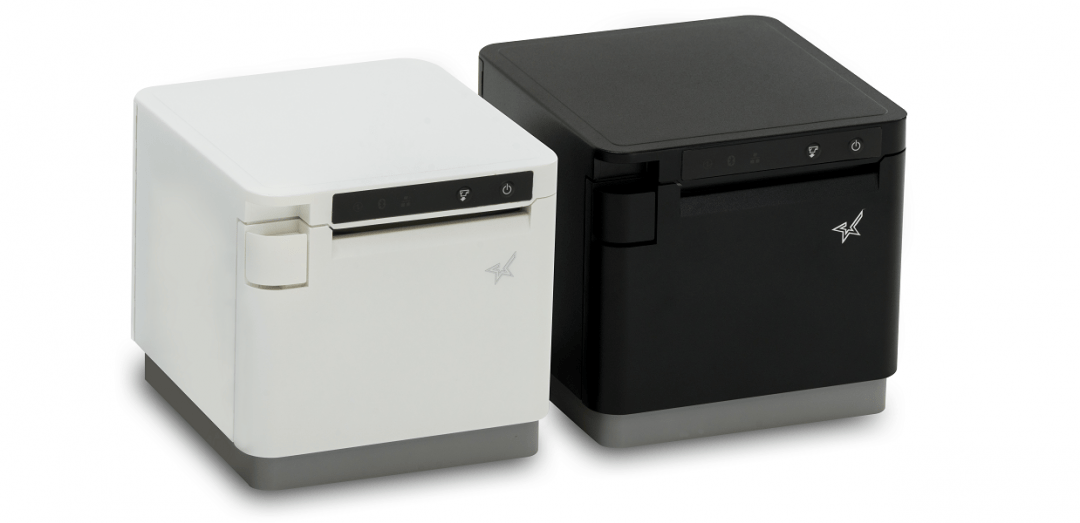
    An industry-leading thermal printer for retail and hospitality, the mC-Print3 provides a simple user experience, is easy to integrate, and features a sleek IPX2-rated splash-proof design. The mC-Print3 is compatible with Star Micronics PromoPRNT receipt marketing technology and is a part of the Star Micronics mCollection, a line of mPOS hardware including printers, cash drawers, scales, tablet POS stands, and more.

    “We are very excited to launch this new version of the mC-Print3,” said Jon Levin, Director of Product Management at Star Micronics. “The addition of a USB-C® connection will allow modern host devices to enjoy the reliable network connection and power supply that SteadyLAN® provides, all through one USB-C® cable.”

  • POS Software and Systems Buyer’s Guide

    POS Software and Systems Buyer’s Guide

    Investing in a point of sale (POS) system is one of the best things you can do for your business, but with so many options on the market, how do you determine which POS hardware and software best suit your business needs and your budget?

    This guide can help you get on the right path to finding the perfect POS system for your business.

    Download the full POS Software and Systems Buyer’s Guide

    Step 1: Define Business Needs

    No one wants to waste time and money on a POS solution that lacks needed capabilities, or has unnecessary features that increase the price. To avoid purchasing a system that isn’t right for your business, you need to identify the specific challenges that you will need your new POS system to address.

    You can start by asking questions such as:

    • Is business suffering because customers must often wait in long lines at the POS?
    • Do shoppers frequently leave your establishment empty-handed because you don’t have the merchandise they want?
    • Are you spending too much time managing employees or trying to find out why your sales volume often doesn’t jibe with your inventory levels?
    • Do you want to attract new customers?

    The answers will help you identify the pain points you want to eliminate and the goals you want to achieve with a new POS system. Also consider the amount of time you spend on operations-related tasks and whether you need the POS system to automate processes. You may also want to consider whether you need the POS system to support initiatives that can help grow your business.

    Once you have clearly identified your business needs, research which POS functions address them. The list of the functions you need your new system to provide will help narrow the field of choices when you shop for a new POS system. The solutions you consider are likely to have a mix of “must-have” and “nice-to-have” features; remember to focus on what you need, which can help you minimize the cost of the system. “More” isn’t necessarily better when it comes to technology solutions.

    Step 2: Set a Budget

    Decide how much your business can afford to spend on a POS system. By most accounts, the average industry investment in POS systems totals 2 to 3 percent of retailers’ annual volume, and 1 to 1.5 percent of restaurant operators’ annual volume. Consider ongoing costs, such as software maintenance/updates, hardware maintenance, and technical support.

    Ask about payment options. Financing may be available to help with the considerable capital investment you will make. You may also be able to lease or lease-to-own POS hardware, which can minimize upfront costs, but may add to the total cost of the system. Another option available to you may be a POS-as-a-Service offer, which provides your system, as well as software updates and system upgrades, for a subscription fee to use (rather than own) the system.

    When choosing from among these options, always consider the total cost of ownership (TCO) and return on investment (ROI). The price of a full-featured POS system may seem high, but don’t forget the financial savings that such a system will yield throughout its lifecycle by reducing labor expenditures, improving inventory control, order accuracy, and cash-tracking, and putting a lid on shrinkage. A comprehensive POS system will also help to up the sales ante by facilitating more effective customer engagement and better customer service, as well as by giving you real-time insight into all aspects of your operation.

    Software-Stock-Image

    Step 3: Shop for Software

    As you consider your options, you will find that not every software solution is compatible with all POS hardware. Selecting your software first will prevent you from being limited in functionality.

    There are different types of software you can choose from:

    • Native. Native POS software is installed on your POS hardware. It is easier to customize than cloud-based software.
    • Cloud-based software (Software-as-a-Service, or SaaS). In a SaaS model, software is delivered via the cloud, and you pay for it on a monthly subscription basis. Also, cloud-based software can be accessed from anywhere there is an Internet connection, giving you enhanced visibility into, and control over your operation. Customizing this type of software may be difficult.
    • Hybrid software. This software can be run online in the cloud or offline.

    It can be helpful to research the types of POS software that other businesses like yours are using. Find out through references or reviews if these retailers or restaurateurs are happy with the type of solution, the functionality it provides, and the benefits the solutions provide to their businesses.

    It can also be helpful to learn about the POS software vendors that provide the software, gaining insights on the level of customer service they provide and their experience working with companies in your market or industry. Also consider whether the vendor is an established company — one that is not likely to close its doors and leave you without support for your system.

    Once you have created a list of POS solutions to consider for your business, it’s time to arrange for demonstrations. Using the solution yourself will give you a sense of how easy it will be for your employees to learn, to use efficiently, and to discover whether it will support your operations. It may be helpful to compare similar features side-by-side to arrive at an accurate assessment of the best solution for your business.

    Step 4: Find Compatible Hardware
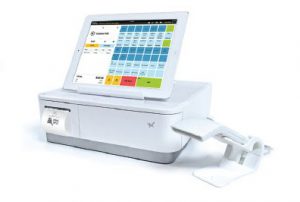
    mPOP-300x202

    The POS software you choose will dictate the POS hardware that you can use. In many cases, however, there will still be a number of options to choose from. Some of the choices you must make are related to how your employees will use the system. For example:

    • What is the preferred input method? Some operators favor keyboards or a scanner interface for POS data input, while others prefer a touchscreen interface that facilitates faster data input and easier training for new employees.
    • Will you use mobile POS? POS functionality on a tablet or other mobile device can give you linebusting, in aisle assist, and pay-at-the-table capabilities that can greatly enhance customer experiences. Your options include adding mobile POS to a traditional, stationary system, or using mobile POS alone.
    • Which peripherals are needed? You need to consider printers, cash drawers, PIN pads, payment card readers, and barcode scanners, and select the model that best suits your needs.
    • Will you accept all forms of payment? Make sure your new system gives your customers the ability to pay by their preferred methods. Now that the U.S. is migrating toward EMV payments, all new POS systems should have the ability to accept chip card payments. Failure to do so can result in bearing liability for fraudulent payment card charges. Also consider trends that indicate emerging payment types. Mobile wallet use, for example, is gaining ground. To accept payments of this type, you’ll need POS solutions that include near field communications (NFC) technology.
    • Which terminal design do you prefer? A traditional POS terminal design may work well for your business. If space at the checkout counter is limited, however, you may want to consider a more ergonomic solution with a smaller footprint, such as an all-in-one configuration that incorporates basic peripherals (e.g., printers, cash drawers, credit card readers, PIN pads, and customer displays) or a tablet POS system. You will also find options that are aesthetically pleasing and don’t detract from a store’s décor or restaurant’s ambiance.

    Just as you did with software vendors, find out all you can about POS hardware vendors. Read references and reviews, and speak with other businesses — preferably similar to yours — that use their solutions. Also ensure that the company provides warranties and technical support.

    Need Help Navigating This Process?

    Choosing a new POS system is an important decision, and to properly research your options and find the right solutions can be a time-consuming task. Fortunately, value-added resellers who specialize in POS systems for retail and restaurants are ready to assist you as you consider business needs and challenges that a POS system can address, set a budget, and select solutions that are right for your business. They will also help you deploy the new system and provide training and technical support.

    Download the Full Buyers Guide Now to Learn More
  • The Best Way to Clean Star Micronics Printers

    The Best Way to Clean Star Micronics Printers

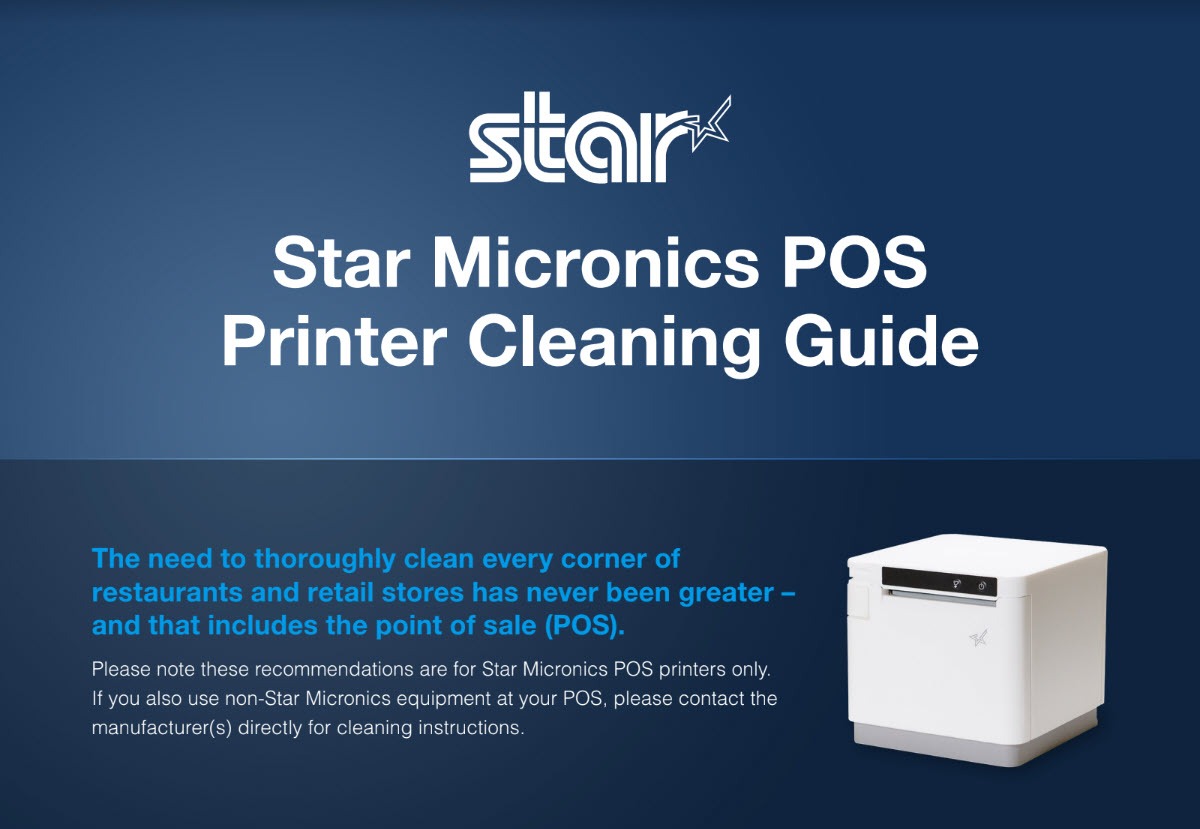
    Across the globe, cleaning policies have been released to combat the spread of COVID-19 (coronavirus). These cleaning policies apply to every inch of a business or office – from tabletops to, of course, the point of sale (POS). There has never been a more important time to pay attention to the proper way to clean your POS station, and that includes the receipt printer. In today’s blog, explore some common cleaning and social distancing policies, as well as the proper way to clean Star Micronics printers.

    The Best Way to Clean Star Micronics Printers: Download the free guide.

    Cleaning and Social Distancing Policies During COVID-19

    Cleaning and social distancing policies vary by region, but a common thread among policies is the need for frequent sanitization of common areas and maintaining a healthy distance in between individuals.

    For an example of some policies that are in place, see below protocols that are active in New Jersey*, where the Star Micronics America headquarters is located, for businesses deemed essential. Please consult your local government to learn about the policies that apply to your region.

    • Requirements for All Businesses Continuing to Operate
      • Owners of buildings used for commercial, industrial, or other enterprises, and of residential buildings with at least 50 units, must implement the following policies at minimum:
        • Clean and disinfect high-touch areas routinely in accordance with CDC guidelines, particularly in spaces accessible to staff, customers, tenants, or other individuals, particularly following a known or potential exposure;
        • Maintain current cleaning procedures in all other areas of the facility;
        • Ensure that the facility has a sufficient number of workers to perform the above protocols effectively.
      • Additional Requirements for Restaurants, Cafeterias, Food Courts, Bars, etc. That are Still Permitted to Operate
        • Limit occupancy to 10% of stated maximum capacity;
        • Ensure 6 feet of distance between workers and customers except at the moment of payment or exchange of goods;
        • Arrange for contactless pay options, pickup, or delivery wherever possible;
        • Provide hand sanitizer and wipes to staff and customers;
        • Frequently sanitize high-touch areas like credit card machines, keypads, and counters;
        • Require infection control practices such as regular hand washing, coughing and sneezing etiquette, and proper tissue usage;
        • Place conspicuous signage at entrances and throughout the food business alerting staff and customers to the required 6 feet of distance;
        • Require workers and customers to wear cloth face coverings, and require workers to wear gloves. A business must provide, at its own expense, these face coverings and gloves for employees. Customers may be exempted if it would inhibit their health, or if under two years of age. If a customer refuses, they must be denied entry, but another method of pickup should be provided.
      • Additional Requirements for Essential Retail
        • Limit occupancy to 50% of maximum store capacity at one time;
        • Establish hours of operation specifically for the exclusive use of high-risk individuals;
        • Install a physical barrier, such as a shield guard, between customers and cashiers/baggers where possible and anywhere you cannot maintain 6 feet of distance;
        • Require regular hand washing, coughing and sneezing etiquette, and proper tissue usage and disposal;
        • Provide employees break time for regular hand washing;
        • Arrange for contactless pay options, pickup, or delivery of goods wherever possible;
        • Provide hand sanitizer and wipes to staff and customers;
        • Frequently sanitize high-touch areas like restrooms, credit card machines, keypads, counters and shopping carts;
        • Require infection control practices such as regular hand washing, coughing and sneezing etiquette, and proper tissue usage;
        • Place conspicuous signage at entrances and throughout the store alerting staff and customers to the required 6 feet of distance;
        • Demarcate 6 feet of spacing in check-out lines to demonstrate appropriate social distancing;
        • Require workers and customers to wear cloth face coverings, and require workers to wear gloves. A business must provide, at its own expense, these face coverings and gloves for employees. Customers may be exempted if it would inhibit their health, or if under two years of age. If a customer refuses, they must be denied entry, unless the business is providing medication, medical supplies, or food, in which case another method of pickup should be provided.

    How to Clean Star Micronics Printers

    Cleaning-Guide-Screenshot

    Clean and safeguard your Star POS printer – quickly, easily, and effectively. Here are some basic tips on cleaning your Star printer:

    • Clean with 70% isopropyl alcohol
    • Clean the exterior and print head only
    • Spray solution into a microfiber or cloth towel first and then wipe
    • Do not soak/submerge equipment or spray directly into product
    • For additional security, it’s recommended to always have the device powered down when cleaning
    • Correctly cleaning the printer should not affect its performance or life
    • If you have any questions about cleaning your Star printer, please contact us

    Click here to download the complete cleaning guide.

    Free Resources During COVID-19 & Beyond

    Now more than ever, safety is a priority in retail and hospitality environments. Star Micronics is proud to offer a line of solutions and resources for businesses during this challenging time, designed to keep consumers and employees safe, as well as mitigate business impact caused by COVID-19.

    At Star Micronics, our hearts go out to anyone impacted by COVID-19, either directly or indirectly, especially to those who are sick, to whom we extend our heartfelt wishes for a full recovery. To learn more about what we are doing as an organization to reduce the global impact of COVID-19, in terms of health and business, please click here.
    To browse all of our blog posts covering tips for small businesses during COVID-19, please visit our #StarForSmallBiz blog collection.

    *Source: https://faq.business.nj.gov/en/articles/3839687-what-mitigation-protocols-are-required-for-businesses-continuing-to-operate

    Discover the Best Way to Clean Star Printers