For some diners, bigger is no longer better. Rising food costs, changing eating habits, and growing use of GLP-1 medications are giving consumers more reasons to think carefully about portion size and what they put on their plates.
That creates an opening for a different buffet model: weigh and pay. Instead of paying one flat price, diners choose the foods and portions they want and pay based on weight.
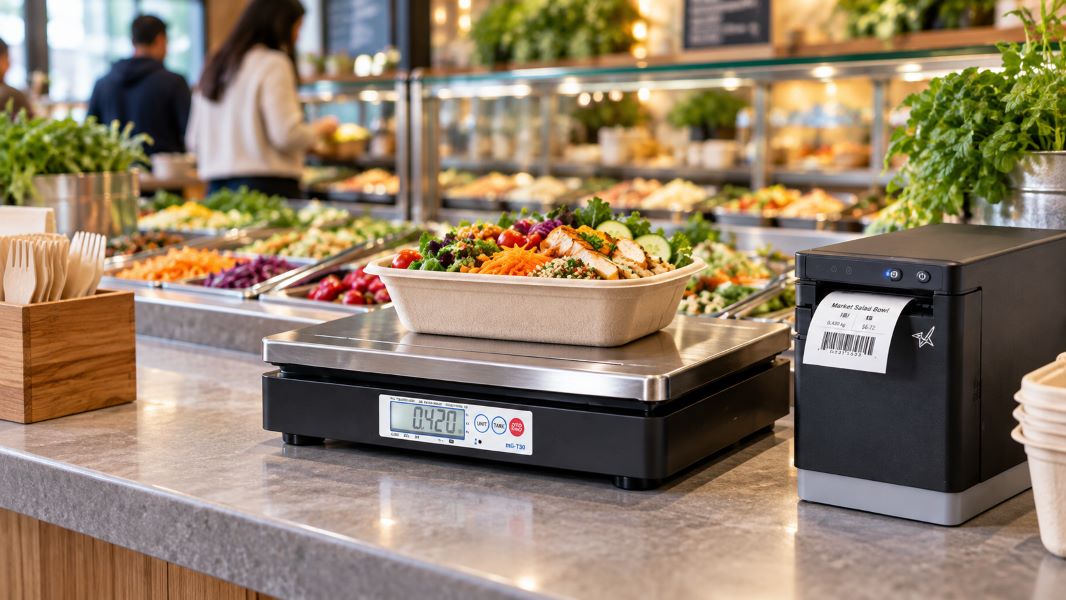
For restaurants, making that model work takes more than putting a scale at the end of the buffet. Accurate weighing, POS integration, food labeling, and checkout all need to work together so customers are charged correctly and staff can keep the process moving.
The Associated Press reports that restaurants are increasingly offering smaller, lower-priced portions as diners watch their budgets, appetites, and health goals.
For some customers, a smaller portion makes dining out more affordable. Others simply do not want to pay for food they are unlikely to finish. Growing use of GLP-1 medications is adding another reason some diners are looking for greater control over portion size.
Restaurants are responding in different ways, from smaller plates and lower-calorie menu options to more flexible portion choices. Weigh-and-pay takes that flexibility a step further by letting guests decide exactly how much food they want and pay for the amount they choose.
What Is a Weigh-and-Pay Buffet?
A weigh-and-pay buffet lets diners choose the foods and portions they want, then pay based on the weight of the food rather than a flat all-you-can-eat price.
That gives customers more control over portion size, food combinations, and cost.
Pizza Ranch is one current example. At select locations, guests can choose Weigh & Pay as an alternative to the traditional buffet, fill a container with items such as pizza, chicken, salads, sides, and desserts, and pay by weight.
For restaurants, the appeal is flexibility: diners can build a meal around appetite, budget, or dietary preferences without committing to a full buffet price.
What Are the Benefits of a Weigh-and-Pay Buffet?
A weigh-and-pay buffet changes more than how the customer is charged. It can also affect staffing, food waste, pricing, menu flexibility, and the way guests move through the restaurant.
Five potential benefits include:
Less order-taking and table-service labor. Because guests choose and portion their own food, restaurants may need fewer employees dedicated to taking orders or serving individual meals. Staff are still needed to maintain the buffet, assist guests, manage food safety, and handle checkout.
Better portion control and less plate waste. When customers pay based on how much food they select, they have a financial reason to take only what they expect to eat. That can help reduce the oversized portions and uneaten food often associated with traditional buffets.
Pricing tied to the quantity purchased. A traditional buffet charges one flat price regardless of how much a guest eats. Weigh and pay links the transaction directly to the amount of food purchased, giving operators a clearer relationship between portion size and revenue.
More menu flexibility. Restaurants can rotate buffet selections without rebuilding the entire menu. Operators can also adjust the food mix and per-weight pricing as ingredient costs change.
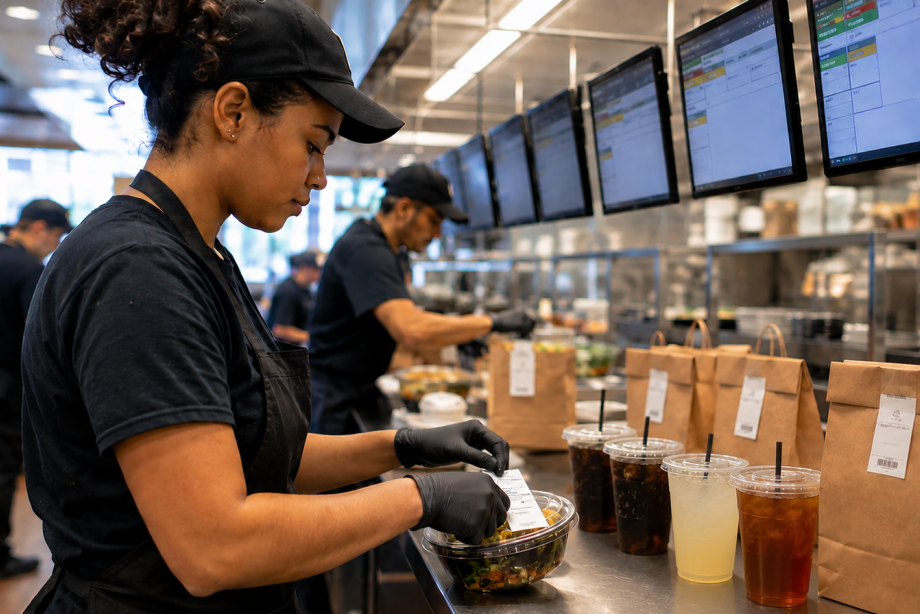
One service model for dine-in and takeout. Guests can build a meal, pay by weight, and either take a seat or take the food to go. That gives restaurants another way to serve customers without creating separate ordering processes for each use case.
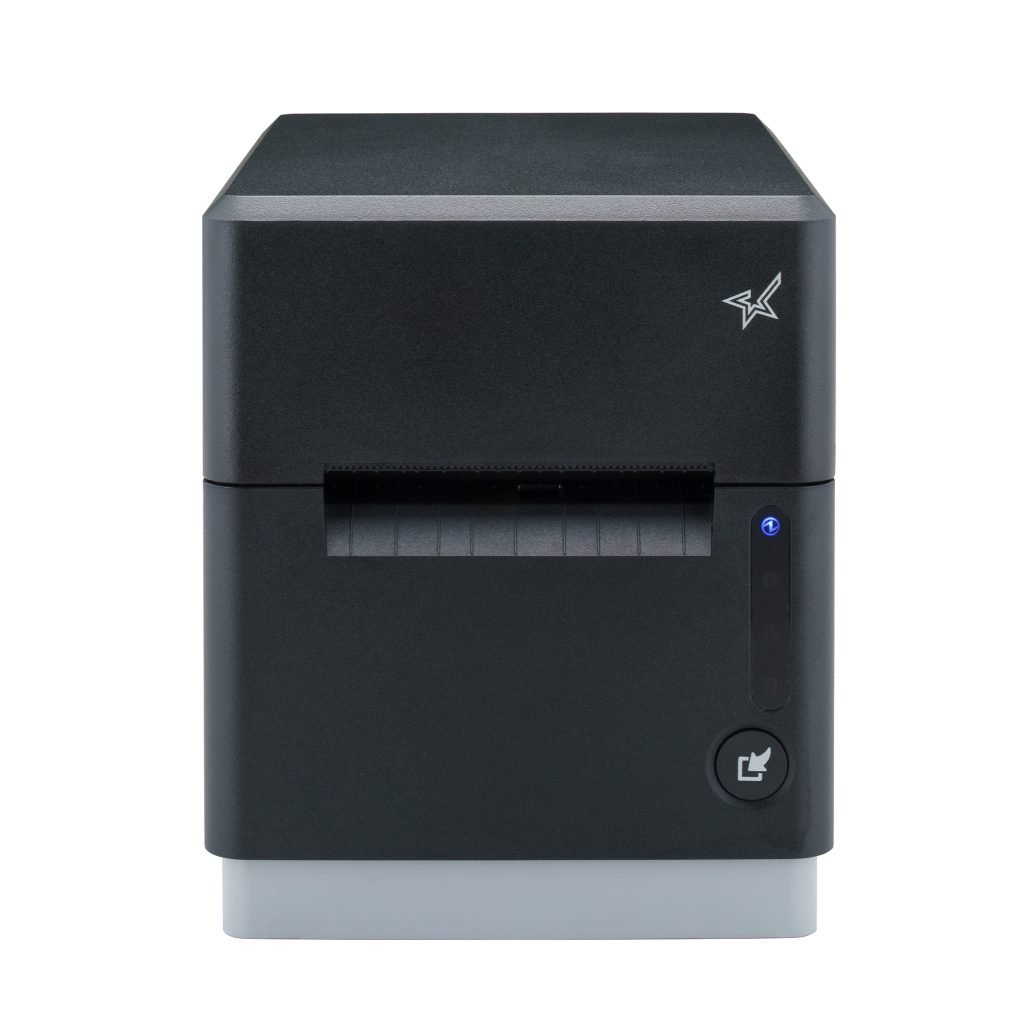
The mG-T POS scale from Star Micronics is ideal for weigh-and-pay buffets.
What Do Restaurants Need to Manage Weigh-and-Pay Transactions?
A weigh-and-pay transaction has to connect four steps: weigh the food, calculate the price, identify the item, and complete checkout.
That starts with the scale.
In the U.S., restaurants should use an NTEP-certified scale and confirm applicable state and local legal-for-trade requirements. In Canada, scales used for commercial transactions must meet Measurement Canada requirements. The weighing process should also account for the container’s tare weight so customers are charged for the food, not the packaging.
The scale should integrate with the POS system so weight and pricing data can move directly into the transaction instead of being entered manually.
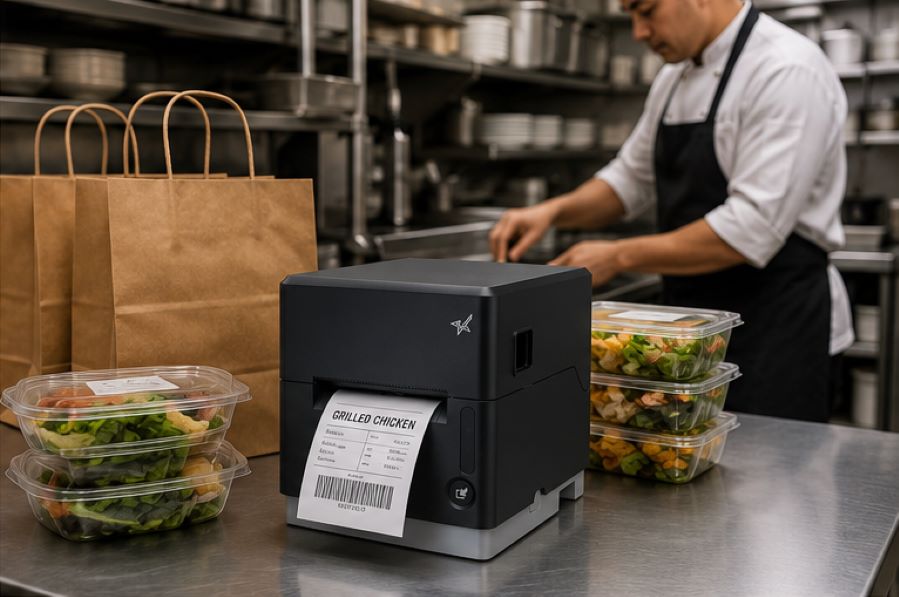
Food labeling can make the workflow even faster, especially when the buffet and checkout are in different areas. After the food is weighed, a restaurant label printer can produce a label with information such as:
Net weight
Price
Product or category information
Barcode for checkout
A multifunction printer can also give restaurants the option to produce both labels and receipts from the same printer family, reducing the number of hardware types IT teams need to support.
Connectivity matters, too. Ethernet, Wi-Fi, Bluetooth, or USB options can give restaurants more flexibility when positioning the scale and printer at the end of a buffet line, near a checkout counter, or in another area where running additional cabling is impractical.
The goal is a simple flow: weigh, price, label, scan, and pay.
Providing Great Dining Experiences, Pound for Pound
Some diners want a hearty meal. Others want smaller portions, more control over what goes on the plate, or a lower total at checkout.
A weigh-and-pay buffet can serve both by letting guests choose the amount they want and pay for what they take. For restaurants, that can mean less order-taking labor, more flexible menu planning, and better control over portion-related waste.
To make the model work, restaurants need accurate commercial weighing, POS integration, and clear labeling. In the U.S., that means selecting an NTEP-certified scale and confirming applicable state and local legal-for-trade requirements. In Canada, scales used for commercial transactions must meet Measurement Canada requirements.
An integrated restaurant label printer can carry weight, price, and barcode information from the buffet line to checkout, helping keep the transaction clear and easy to process.
Need help planning a weigh-and-pay setup? Contact Star Micronics to discuss compatible scales, printers, and POS integration options.
The Smart QSR Delivery Playbook: Labeling, Accuracy & Efficiency Done Right
Learn how leading QSRs are using smart labeling and scalable POS technology to support faster, more accurate QSR delivery operations.
Frequently Asked Questions About Weigh-and-Pay Buffet Management
How does a weigh-and-pay buffet work?
Diners select food from the buffet and place it in a container. The food is weighed, the applicable price is calculated based on that weight, and the transaction is completed at checkout.
Depending on the setup, a label can also carry the weight, price, product information, or a barcode from the buffet area to the POS.
What type of scale does a restaurant need for weigh-and-pay?
Restaurants need a commercial scale appropriate for legal-for-trade transactions.
In the U.S., restaurants should select an NTEP-certified scale and confirm applicable state and local weights-and-measures requirements. In Canada, scales used for commercial transactions must meet Measurement Canada requirements.
For an integrated weigh-and-pay workflow, the scale should also be compatible with the restaurant’s POS system so weight data can be used to calculate the transaction accurately.
How is the container weight handled in a weigh-and-pay transaction?
The weight of the empty container, or tare weight, should be deducted so the customer is charged for the food rather than the packaging.
Restaurants can account for tare weight through the scale or integrated POS workflow, depending on the equipment and software being used.
Can a weigh-and-pay buffet reduce food waste?
It can help reduce portion-related waste because customers choose how much food they want and pay according to the quantity selected.
The model does not eliminate buffet waste on its own. Restaurants still need to manage production, replenishment, and food holding carefully to avoid preparing more food than guests purchase.
Do weigh-and-pay buffets require a label printer?
Not necessarily, but a restaurant label printer can be useful when the weighing station and checkout are in different areas.
After an item is weighed, the printer can produce a label containing information such as net weight, price, product details, and a barcode. The customer can then carry the labeled container to checkout for faster identification and payment.
Can restaurants use an existing POS system with weigh-and-pay scales and printers?
Possibly. Compatibility depends on the POS software, scale, printer, interfaces, and integration method.
Before purchasing hardware, restaurants should confirm that the POS system can receive the required weight data and communicate with the scale and printer being considered. Star Micronics’ integration team can help software providers and restaurant technology teams identify compatible hardware and integration options.
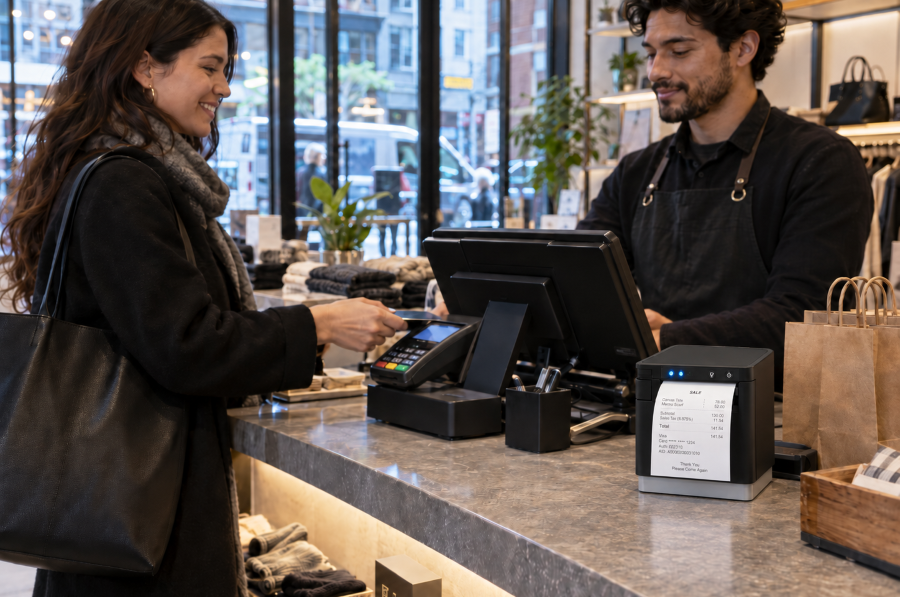
Proof of purchase gives customers a record of what they bought, how much they paid, and when the transaction occurred. Retail receipts are commonly used for returns and exchanges, warranty claims, expense reports, bookkeeping, and purchase disputes.
In New York City, sellers must offer a receipt for retail purchases of $20 or more and provide one upon request for purchases between $5 and $20. Receipts must also contain specific transaction and business information. For retailers, compliance requires more than printing a slip of paper. Receipt templates, POS rules, employee procedures, and printer output must all produce accurate proof of purchase when required.
Proof of purchase documents the transaction for both the customer and the retailer. A complete retail receipt can help resolve common post-purchase questions and disputes, including:
Returns and exchanges: Confirms the item purchased, transaction date, price paid, and whether the request meets the retailer’s return policy.
Warranties: Verifies the purchase date, product details, and eligibility for repair, replacement, or other warranty coverage.
Expense reports and bookkeeping: Provides an itemized record of the seller, purchase date, amount paid, and taxes.
Chargebacks and purchase disputes: Supports the retailer’s transaction records and may help respond to inaccurate or fraudulent claims.
When Are Retailers Required to Provide Proof of Purchase in NYC?
Under 6 RCNY § 5-32, New York City sellers must offer a receipt for any retail purchase of $20 or more. For purchases between $5 and $20, the seller must provide a receipt when the customer requests one. These requirements are enforced by the New York City Department of Consumer and Worker Protection.
The general rule does not apply to food or drinks intended for on-premises consumption or to oil, gasoline, or parking fees paid in cash. However, sellers must provide a receipt upon request when one of these purchases exceeds $5. For food or drinks sold for off-premises consumption, a register tape showing the seller’s name, purchase date, and individual item prices may serve as the receipt.
What Information Must Appear on NYC Retail Receipts?
NYC retail receipt requirements specify what stores must include with proof of purchase:
The amount paid for each item
The total amount paid, with tax listed separately
The purchase date
The retailer’s legal name and address
The DCWP license number, when applicable
The make and model of audio, photographic, or video equipment costing more than $100
The law also states what retailers cannot include on a receipt, i.e., more than the last 5 credit card digits or the payment card’s expiration date.
Paper Receipts vs. Digital Receipts
Paper and digital receipts can both give customers a record of a purchase. NYC rules specify when retailers must offer or provide a receipt and what information it must contain, but they do not expressly state whether electronic delivery alone satisfies the requirement. Retailers using digital receipts should confirm that their process complies with current NYC guidance.
Digital receipts may work well when customers choose delivery by email, text, or app and can receive the record immediately. Paper receipts remain important when a customer does not provide digital contact information, wants proof of purchase at the point of sale, or cannot access a digital receipt.
Paper receipts may be preferable when:
Digital receipts may be preferable when:
The customer pays with cash and provides no digital contact information.
The customer chooses delivery by email, text, or an app.
The customer wants immediate proof of purchase for an exit check, return, or expense report.
The customer wants a searchable record for budgeting, returns, or bookkeeping.
Internet access or digital delivery is unavailable or unreliable.
The retailer can confirm that the receipt was delivered promptly.
The customer specifically requests a printed copy.
The customer prefers not to receive paper.
Retailers that offer digital receipts should maintain a dependable printing option for customers who request paper or cannot access an electronic copy. Any receipt provided should include the required transaction and business information and protect payment card data.
Are There Penalties for Violating NYC Retail Receipt Requirements?
Retailers that fail to follow NYC receipt requirements may face a consumer complaint, a civil penalty, and problems resolving questions after the sale.
Omits required transaction or business information
Lists prices or taxes incorrectly
Displays prohibited payment card information
NYC business guidance lists a fine of $150 to $350 for failing to provide a required receipt or issuing an incomplete one. A complaint does not automatically establish a violation. DCWP may review the complaint and pursue enforcement when warranted.
Business Consequences
Missing or incomplete proof of purchase can turn a routine return, warranty claim, or price question into a dispute. Customers may be unable to confirm what they paid, how much tax was charged, or when the transaction occurred.
If the retailer cannot resolve the issue, the customer may dispute the charge with their card issuer or decide not to return. These problems also create more work for employees and can make customers question whether the retailer’s sales practices are transparent.
How Can Retailers Comply with NYC Retail Receipt Requirements?
Compliance depends on more than having a receipt printer. Retailers need accurate POS rules, approved receipt templates, trained employees, and a process for checking that receipts print correctly.
Configure NYC Receipt Rules in the POS System
Configure the POS system and employee procedures to reflect when receipts must be offered or provided:
Account for exceptions involving food consumed on-site and certain cash payments for gasoline, oil, or parking.
Train employees to recognize and respond to receipt requests.
Standardize Required Receipt Information Across Locations
Multi-location retailers should use an approved receipt template containing the required purchase, tax, and business information. Each receipt should display the correct store address and DCWP license number when applicable, while keeping prohibited payment card information masked.
Manage template updates centrally so every store and register receives the same changes when tax settings, business information, or receipt requirements are updated.
Test Receipt Output and Plan for Outages
Print sample receipts from every register and location to confirm that:
Required transaction and business information appears correctly.
Taxes are listed separately.
Payment card information is properly masked.
Store-specific details are accurate.
The receipt prints clearly and completely.
Repeat these checks after changes to POS software, hardware, taxes, or receipt templates. Retailers should also establish a backup process for issuing proof of purchase during printer, POS, network, or cloud service outages.
What Features Should Retailers Look for in a Receipt Printer?
The POS system or application controls receipt content, but the printer must reproduce that information clearly and consistently. Retailers should evaluate:
POS and software compatibility: Confirm that the printer works with the retailer’s POS platform, operating systems, devices, and cloud applications.
Appropriate connectivity: Match USB, Ethernet, WLAN, or Bluetooth connectivity to the checkout setup and store layout.
Fast, legible printing: Required purchase details, taxes, barcodes, and return information should print clearly without slowing checkout.
Simple operation: Employees should be able to load paper, identify errors, and complete routine maintenance quickly.
Proven reliability: Review printhead and cutter ratings, warranty coverage, technical support, and access to drivers and documentation.
Receipt formatting support: Make sure the POS system can include required proof-of-purchase information while keeping promotions and loyalty messaging separate.
Star Receipt Printers for Retail Environments
Star Micronics offers several receipt printers suited to retail checkout and proof-of-purchase applications:
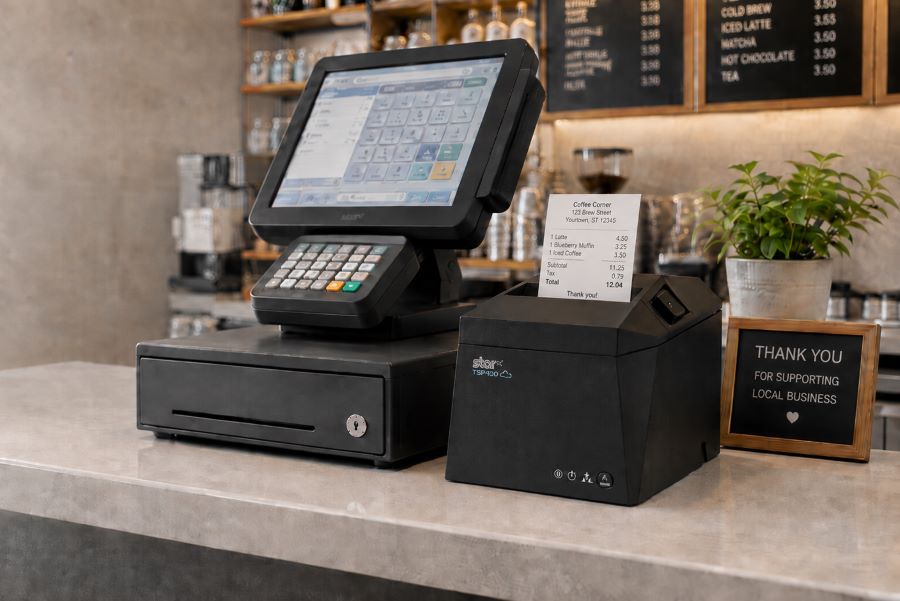
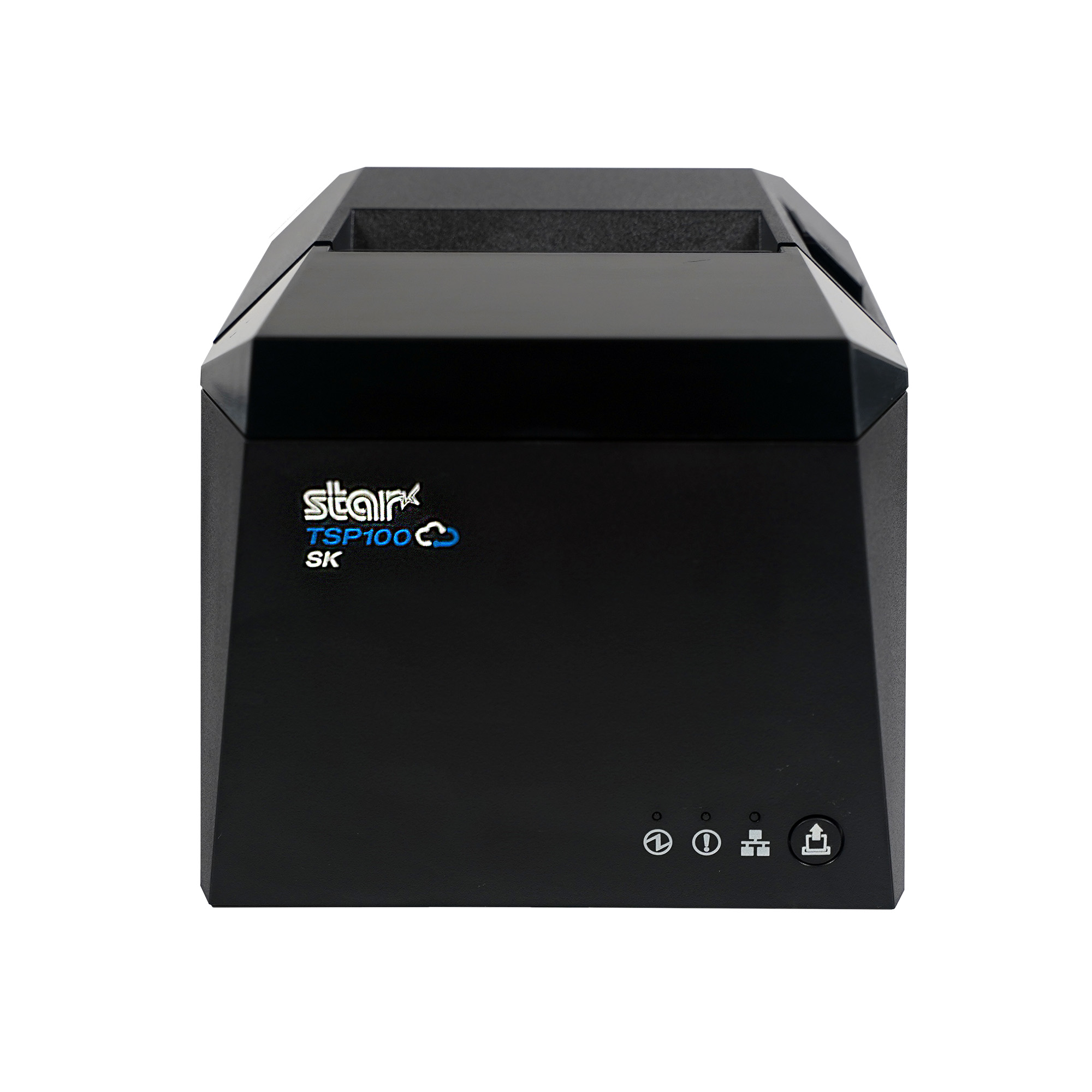
TSP143IV: A compact thermal receipt printer with wired and wireless model options, cloud-printing support, and rapidSYNC Wi-Fi setup on X4 models.
mC-Print3: A compact front-loading receipt printer with connectivity options for fixed, mobile, and cloud-connected POS environments.
Retailers should compare POS compatibility, connectivity, available counter space, print volume, and cloud-printing requirements before choosing a model.
Support NYC Receipt Compliance with Reliable Printing
NYC receipt compliance depends on accurate POS rules, complete receipt content, and reliable printing. When those elements work together, customers receive a clear record of the transaction that they can use to verify charges, make returns, submit warranty claims, or maintain financial records.
Retailers should consider POS compatibility, connectivity, store layout, print volume, and backup procedures when choosing a receipt printer.
The 5 Best Star Receipt Printers for Retail, Restaurants, and More
From compact receipt printers for front counters to rugged models for high-volume kitchens, this guide breaks down the five best options to help you choose the right fit.
Frequently Asked Questions About Proof of Purchase and NYC Retail Receipt Laws
What counts as proof of purchase under NYC retail receipt rules?
For purposes of NYC retail receipt requirements, proof of purchase is a receipt containing the required information about the seller and transaction. For food or drinks sold for off-premises consumption, a register tape showing the seller’s name, purchase date, and individual item prices may serve as the receipt.
When must NYC retailers offer or provide a receipt?
Retailers must offer a receipt for purchases of $20 or more. For purchases between $5 and $20, they must provide one when the customer asks.
Different rules apply to food or drinks consumed on the premises and to oil, gasoline, or parking fees paid in cash. For these transactions, the seller must provide a receipt upon request when the purchase exceeds $5.
What information must appear on an NYC retail receipt?
A compliant NYC retail receipt must include:
The business name and address
The DCWP license number, when applicable
The amount paid for each item
The total amount paid, with tax listed separately
The purchase date
The make and model of audio, photographic, or video equipment costing more than $100
A receipt cannot show a payment card’s expiration date or more than its final five digits.
Which businesses and transactions are covered by NYC receipt requirements?
The rule generally applies to sellers making retail sales of goods or services to consumers in New York City. It includes specific exceptions for food or drinks consumed on-site and cash payments for oil, gasoline, or parking, although customers may still request receipts for those purchases when the total exceeds $5. Other industries may also be subject to separate receipt or recordkeeping requirements.
Does NYC require a paper receipt, or can retailers provide a digital receipt?
NYC’s published rule specifies when a receipt must be offered or provided and what it must contain, but it does not expressly state whether electronic delivery alone satisfies the requirement. Retailers using digital receipts should confirm their process with DCWP or legal counsel and maintain a reliable way to print a receipt when a customer requests or needs one.
What happens if a retailer provides an incomplete or noncompliant receipt?
Customers may file a complaint with DCWP over an incomplete, incorrect, or illegal receipt. NYC business guidance lists fines of $150 to $350 for failing to provide a required receipt or providing an incomplete one. A complaint does not automatically establish a violation; DCWP may review the matter and pursue enforcement when appropriate.
How can retailers update their POS systems for NYC receipt compliance?
Retailers should configure the POS system to prompt employees to offer or provide receipts at the correct transaction amounts. They should also:
Create an approved template containing all required receipt information.
Add accurate location-specific business and license details.
Mask prohibited payment card information.
Test receipt output at every register.
Retest after software, tax, hardware, or template changes.
Train employees on receipt requests and applicable exceptions.
For multi-location retailers, managing templates centrally can help prevent individual stores from using outdated receipt information.
Your customer calls because a receipt printer is failing. The POS application isn’t the problem. It still handles transactions, employees know it, and the integration has been running for years. The challenge is replacing the printer without rebuilding software that still works.
Many legacy POS systems were built around Epson printers and ESC/POS commands. Years later, those applications may still depend on ESC/POS even when the original printer hardware is ready to be replaced.
That does not mean the entire POS system has to go with it. ESC/POS-compatible printers can interpret supported commands from the existing application, giving VARs and ISVs a way to introduce newer printer hardware while preserving the current integration.
And those options now extend beyond receipt printing. Star Micronics offers ESC/POS support across thermal receipt printers, linerless sticky label printers, and impact kitchen printers.
A legacy POS system is an established point-of-sale environment that remains in use even though newer hardware, software, connectivity, or integration options are available.
That can include a traditional POS system running on fixed terminals, industry-specific software developed years ago, or a custom application that has become deeply embedded in a retailer’s or restaurant’s operations.
Legacy does not necessarily mean obsolete. Businesses may continue using these systems because:
The POS application still handles the transactions and workflows they need.
Employees already know how to use it.
Custom integrations depend on the existing software.
The system is deployed across many locations.
Replacing it would require development, testing, installation, and training.
For VARs and ISVs, the question is often not whether the customer could replace the entire system. It is which parts actually need to change.
If the POS application still works, replacing aging printer hardware may be a much smaller project than replacing the application behind it.
What Is ESC/POS and Why Do Legacy POS Systems Still Use It?
ESC/POS is a printer command system developed by Epson. POS applications use ESC/POS commands to tell a compatible printer what to print and how to perform supported functions, such as formatting text, printing graphics, cutting paper, or opening a connected cash drawer.
Because Epson printers have long been used in POS environments, many established applications were built to communicate using ESC/POS. Years later, those applications may still depend on the same command language even when the original printer hardware is ready to be replaced.
That is where ESC/POS emulation becomes useful.
A printer with ESC/POS emulation can interpret supported ESC/POS commands even when ESC/POS is not its native printer language. For a VAR or ISV, that can make it possible to pair an existing application with newer printer hardware without rewriting the application around a different printer command language.
The important word is supported.
ESC/POS compatibility does not mean every compatible printer will behave identically. An application may rely on specific character sets, formatting, barcodes, cutter commands, cash drawer controls, status responses, or other functions.
That is why ESC/POS support provides a path to newer hardware, but the exact printer, interface, commands, and application still need to be tested before deployment.
How ESC/POS Support Helps VARs and ISVs Modernize a Legacy POS System
Once an existing application can communicate with newer printer hardware through ESC/POS, the printer replacement no longer has to be tied to a full POS migration.
For VARs and ISVs, that opens up several practical options.
Preserve the Existing Printer Integration
If the application already sends supported ESC/POS commands, much of the existing printing logic may be able to remain in place. That can reduce the scope of a printer replacement project for an ISV maintaining established POS software or a VAR supporting customers that are not ready to replace the application itself.
The integration still needs to be tested with the exact printer and functions in use, but the starting point is very different from rebuilding the printing workflow around another command language.
Expand the Printer Hardware You Can Offer
An application built around ESC/POS no longer has to limit the customer to the same type of printer hardware it was originally deployed with.
Current ESC/POS-compatible options can include:
Thermal receipt printers
Linerless sticky label printers
Impact kitchen printers
That is particularly important for established applications that need to support new workflows. A restaurant may want sticky labels for delivery orders while keeping its existing POS application. Another may need to replace an aging kitchen printer without changing the software sending the tickets.
ESC/POS compatibility gives VARs and ISVs more hardware choices while preserving the application’s existing communication method.
Separate Printer Replacement from POS Migration
A customer does not always need to replace its POS software, terminals, peripherals, and printers at the same time. An aging printer can be replaced first while the existing application remains in use. Other changes, such as new devices, online ordering, cloud applications, or different POS software, can happen on their own schedule.
For multi-location customers in particular, that can make a hardware rollout easier to test and manage than an all-at-once POS replacement.
Support Both Existing and Newer Workflows
Many customer environments already contain a mix of technologies. A traditional POS system may still handle in-store transactions while tablets, online ordering, or cloud applications are introduced elsewhere in the business.
Selecting newer printer hardware that supports the existing ESC/POS workflow and additional interfaces or integration technologies gives VARs and ISVs more options as those deployments change.
The existing application can continue using ESC/POS, while other printer capabilities can be used separately where the software and workflow support them.
What Modern Printer Capabilities Can You Add to a Legacy POS System?
Once a newer printer can interpret the ESC/POS commands used by an existing application, VARs and ISVs can look beyond basic printer replacement.
ESC/POS provides the compatibility. The printer provides the newer capabilities. Exactly which capabilities can be used depends on the printer, application, interface, and deployment, but newer hardware can open several possibilities.
1. More Types of Printing Hardware
An application built around ESC/POS does not necessarily have to remain tied to the same type of printer hardware it originally used.
Star now provides ESC/POS support across three distinct printer categories:
Thermal receipt printers for transaction receipts and other standard POS output
Linerless sticky label printers for applications that can generate adhesive labels
Impact printers for kitchen tickets and other environments where impact printing is required
That gives VARs and ISVs more hardware choices when an existing ESC/POS application needs to support a different type of output.
The application still needs to generate the appropriate content, formatting, and supported commands. ESC/POS compatibility alone does not turn a receipt workflow into a label workflow. But it can remove one of the barriers to using a different type of printer.
2. More Connectivity Options
A legacy POS system may have been designed around one specific wired interface. Newer printers can support several connection methods in the same model.
Star’s TSP143IV X4 receipt printer and TSP143IV SK X4 linerless label printer, for example, each include USB-C, Ethernet, Wireless LAN, and Bluetooth connectivity.
X4 models by Star Micronics include USB, LAN, WLAN, and Bluetooth connectivity
That gives VARs and ISVs more choices when the hardware around an established application changes.
A new workstation may use USB-C. Another location may need a network connection. A customer may be introducing tablets or other devices alongside fixed POS terminals.
ESC/POS does not provide those interfaces. It can help preserve supported communication with the existing application while the newer printer provides additional connection options.
That means an ISV could continue supporting an established ESC/POS-based in-store application while developing a separate cloud-printing workflow for online ordering, remote order fulfillment, or another cloud application.
The distinction matters: ESC/POS does not make the legacy POS system cloud-connected. It allows the existing application to continue communicating with the printer, while the same printer may support a separate cloud integration.
For a VAR, ISV, or enterprise team supporting printers across multiple locations, that can make it easier to determine whether a device is connected and investigate printer issues without starting every support case at the physical location.
Like cloud printing itself, these management capabilities are separate from ESC/POS emulation. They become relevant because the newer printer can support both the established ESC/POS workflow and additional technologies.
ESC/POS compatibility allows an existing application to communicate with supported newer printer hardware. It does not automatically give that application access to every capability the new printer offers.
For example:
A printer may include Wireless LAN, but the existing application still needs a supported way to communicate with it over the network.
A printer may support Bluetooth, but that does not turn an older desktop POS application into a mobile application.
A printer may support CloudPRNT Next, but the existing application does not become cloud-connected simply because the printer does.
A linerless label printer may support ESC/POS, but the application still needs to generate the content, formatting, and commands required for the label workflow.
The simplest way to think about it is this: ESC/POS can preserve the communication between the application and the printer. It does not rewrite the application.
New connectivity, cloud printing, label workflows, remote device management, and other capabilities still depend on the printer, software, and integration being used.
How Should VARs and ISVs Evaluate an ESC/POS Printer for a Legacy POS System?
“ESC/POS compatible” is a starting point, not a guarantee that a printer will work with an existing application.
Before recommending new hardware, VARs and ISVs should verify how the application communicates with the current printer, which functions it relies on, and whether the proposed replacement supports those requirements.
1. Confirm That the POS Application Uses ESC/POS
Start with the POS application itself. Check its documentation, printer configuration, integration settings, or developer resources to confirm that it sends ESC/POS commands.
If the application uses another printer language, a driver-specific workflow, or a proprietary integration, ESC/POS emulation alone will not make the new printer compatible.
2. Identify the Commands and Functions the Application Relies On
Two applications can both use ESC/POS while depending on very different printer functions.
Test the functions used in the actual deployment, such as:
Text formatting
Character sets and code pages
Logos and graphics
1D and 2D barcodes
Paper cutting
Cash drawer commands
Printer status
Receipt layouts
Label layouts and formatting
A basic receipt application has different requirements from one that also controls a cash drawer, prints barcodes, or generates linerless labels.
3. Verify the Connection Method
Confirm how the application communicates with the printer today and whether the proposed printer supports ESC/POS through the required interface. That may include USB, Ethernet, serial, or another connection.
This matters because ESC/POS support can vary by model and interface. For example, Star’s ESC/POS support on the SP742 impact printer is specifically LAN-based.
4. Review the Rest of the Software Environment
The printer is only one part of the integration. Also verify:
Operating system
Drivers
SDKs or libraries
Printer firmware
POS software version
Network configuration
Peripheral controls
A printer may support ESC/POS and still require changes elsewhere in the deployment before it can replace the existing hardware.
5. Match the Printer to the Required Output
Once application compatibility is established, choose the printer technology based on what the customer actually needs to print.
Thermal receipt printing: For transaction receipts and other standard POS output.
Linerless label printing: For adhesive labels used in order identification, food and beverage workflows, retail, and other labeling applications.
Impact printing: For kitchen environments where heat and humidity can affect thermal paper or where multipart copies are required.
This is also where Star’s expanded ESC/POS lineup becomes relevant. The same ESC/POS-dependent application environment may now have options across receipt, linerless label, and impact printing rather than being limited to one printer category.
6. Pilot Before a Large Deployment
Test the proposed printer with the actual application before rolling it out across a customer base.
Use the same:
POS software version
Operating system
Connection type
Printer firmware
Receipt or label layouts
Media
Peripherals
Network configuration
A controlled pilot can expose formatting, command, interface, or configuration differences before they are repeated across dozens or hundreds of installations.
Star ESC/POS Printer Options for Legacy POS Systems
Star Micronics expanded ESC/POS support across receipt, linerless label, and impact printing options, giving VARs and ISVs several choices when supporting existing ESC/POS applications.
Star Printer
Primary Output
ESC/POS Support
Connectivity
TSP143IV UE
Thermal receipts
ESC/POS emulation
USB-C, LAN
TSP143IV X4
Thermal receipts
ESC/POS emulation
USB-C, LAN, WLAN, Bluetooth
TSP143IV UE SK
Linerless sticky labels
ESC/POS emulation
USB-C, LAN
TSP143IV SK X4
Linerless sticky labels
ESC/POS emulation
USB-C, LAN, WLAN, Bluetooth
SP742 LAN
Impact kitchen tickets
LAN-based ESC/POS emulation
Ethernet
TSP143IV for Thermal Receipt Printing
The TSP143IV thermal receipt printer gives VARs and ISVs a current thermal receipt printer option for legacy POS systems that rely on ESC/POS.
The UE model provides USB-C and LAN connectivity. The X4 adds WLAN and Bluetooth, giving solution providers a single receipt printer model that meets multiple connectivity requirements.
TSP143IV Thermal Receipt Printer
Star’s TSP143IV series thermal receipt printer combines a compact design with flexible connectivity, including Android Open Accessory (AOA). It’s Cloud Ready for Star Cloud Services and designed for straightforward installation across traditional POS, mPOS, retail, and hospitality environments.
For customers who need adhesive output rather than a conventional receipt, the TSP143IV SK brings ESC/POS support to linerless sticky label printing.
The printer supports 80 mm, 58 mm, and 40 mm media widths. The X4 model includes USB-C, LAN, WLAN, and Bluetooth, while the UE model provides USB-C and LAN.
That gives VARs and ISVs another option when an existing POS application needs to support labeling for order identification, food and beverage, retail, or other workflows.
TSP143IV SK Sticky Label Printer
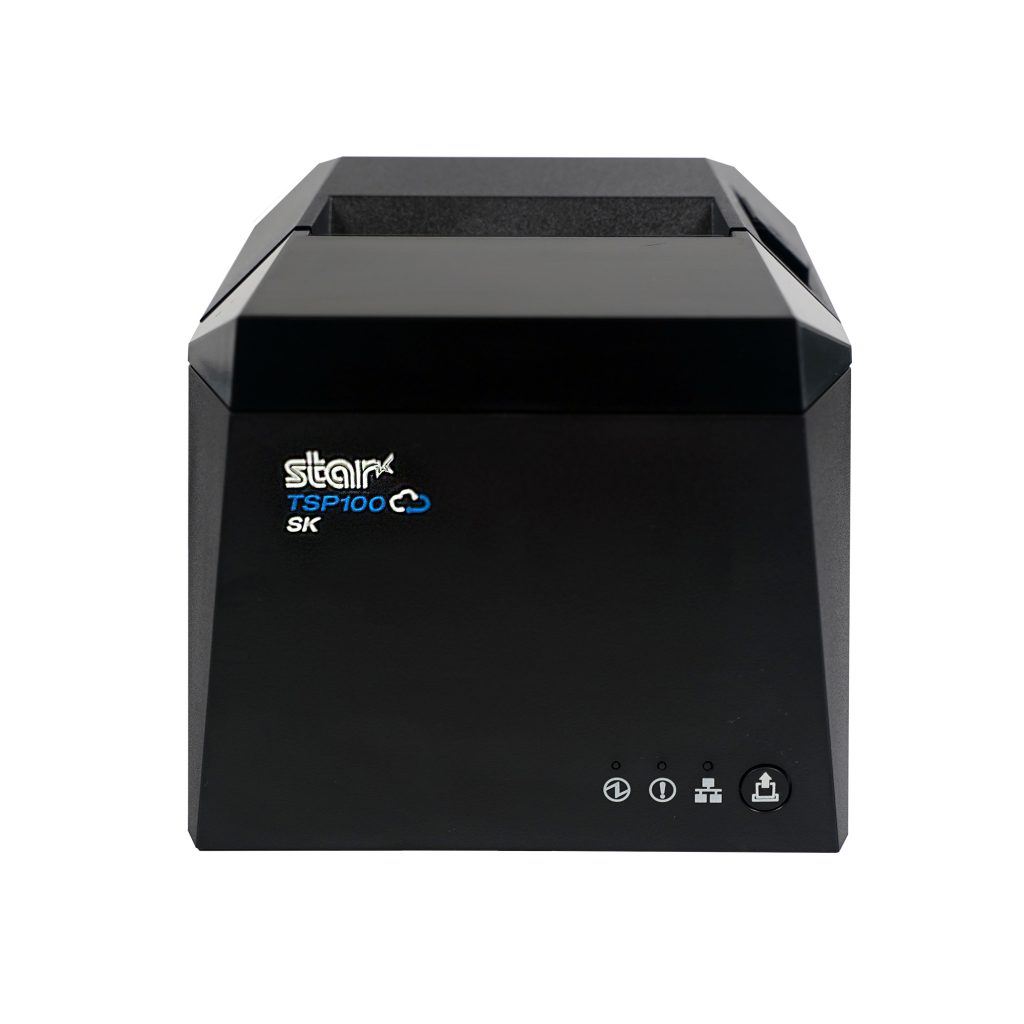
The TSP143IV SK by Star Micronics sets a new standard for compact, eco-friendly liner-free label printing using residue-free removable sticky labels. It offers advanced connectivity options like Bluetooth, USB-C, Wi-Fi, and AOA support for today’s diverse business setups.
The SP742 provides LAN-based ESC/POS emulation for applications that require impact output.
Impact printing remains useful in restaurant kitchens where heat and humidity can interfere with thermal paper. The SP742 also supports two-color printing and multipart copies, which can be useful when kitchen operations require duplicate tickets.
SP742 Impact Printer
The SP742 impact printer is built for demanding kitchen environments, with fast two-color printing and support for multipart tickets. Available connectivity options include Ethernet and Bluetooth, giving restaurants and foodservice operations flexible ways to route and print kitchen orders.
Modernize the Printer Without Replacing the Entire POS System
A failing or outdated printer should not automatically force a customer into a full POS migration.
For VARs and ISVs supporting a legacy POS system, ESC/POS compatibility can provide a practical way to keep an established application in place while replacing the hardware around it. The application can continue sending supported ESC/POS commands, while newer printers provide current options for receipt printing, linerless labels, impact kitchen tickets, connectivity, and other supported integrations.
The distinction is simple: ESC/POS preserves the communication path. The newer printer changes what hardware you can put at the other end of it.
That gives solution providers more ways to address an immediate printer need without rebuilding software that is still doing its job.
An Independent Software Vendor’s Guide to Star Printer SDKs
This guide breaks down Star Micronics’ printer SDKs, APIs, and integration tools to help ISVs choose the right solution for POS systems, cloud printing platforms, and custom software applications.
Frequently Asked Questions About ESC/POS and Legacy POS Systems
What is a legacy POS system?
A legacy POS system is an established point-of-sale environment that remains in use even though newer hardware, software, connectivity, or integration options are available.
The system may still perform its required functions, but replacing peripherals or adding newer technologies can become more difficult because of existing software and hardware dependencies.
What is ESC/POS compatibility?
ESC/POS is Epson’s proprietary POS printer command system. ESC/POS compatibility means a printer can interpret supported ESC/POS commands sent by an application.
Printers that use another native command language can provide ESC/POS emulation, allowing applications built around ESC/POS to communicate with supported printer hardware.
Can a traditional POS system use a newer printer?
Yes, depending on how the POS application communicates with its current printer.
If a traditional POS system sends ESC/POS commands and the newer printer provides compatible ESC/POS support, it may be possible to replace the printer without replacing the POS application. The exact printer model, interface, commands, firmware, and software environment should still be tested before deployment.
Can an application built for an Epson ESC/POS printer work with a Star printer?
Potentially, yes. If the application sends ESC/POS commands supported by the Star printer, ESC/POS emulation may allow the existing application to communicate with the new hardware.
That does not make every Star printer a drop-in replacement for every Epson printer. VARs and ISVs should verify the exact commands, connection method, printer functions, and application behavior before deployment.
Star currently provides ESC/POS emulation across the TSP143IV UE and X4 receipt printers, TSP143IV UE SK and SK X4 linerless label printers, and LAN-based ESC/POS emulation on the SP742 impact printer.
Does ESC/POS compatibility make a printer a drop-in replacement?
Not necessarily. Two printers can both support ESC/POS but differ in command support, character sets, status handling, interfaces, configuration, and other behaviors.
VARs and ISVs should test the existing application with the exact printer model before deploying it as a replacement.
Do I need to update POS software to use an ESC/POS printer?
Not always. If the existing application already sends ESC/POS commands supported by the new printer, significant changes to the application’s printing logic may not be necessary.
However, configuration, drivers, interface settings, or application changes may still be required depending on the deployment.
Can an ESC/POS application work with receipt, label, and impact printers?
Yes, provided the application sends commands supported by the printer and can generate the content required for that type of output.
ESC/POS compatibility is available across different printer categories. Star currently offers ESC/POS emulation on TSP143IV thermal receipt printers and TSP143IV SK linerless label printers, as well as LAN-based ESC/POS emulation on the SP742 impact printer.
The printer hardware determines the media and type of output. For example, moving from receipts to linerless labels also requires the application to generate the appropriate label content and formatting.
Can ESC/POS add wireless or cloud printing to a legacy POS system?
ESC/POS itself does not add wireless or cloud printing.
A newer ESC/POS-compatible printer may also provide WLAN, Bluetooth, CloudPRNT, or CloudPRNT Next. Those are separate printer and integration capabilities. Whether they can be used depends on the application, printer model, connection method, and integration.
For example, Star’s X4 receipt and linerless label models combine ESC/POS emulation with USB-C, LAN, WLAN, Bluetooth, and CloudPRNT Next support.
Employees increasingly use smartphones and tablets to manage inventory, look up products, process orders, and complete other work away from a desk. Creating labels, however, can still require a trip back to a computer.
A missing barcode, updated price, new expiration date, or incoming product may mean stopping the task, opening desktop labeling software, finding the right template, entering the information, and sending the label to a printer.
A mobile label printing app removes the desktop from that process. Employees can create, edit, and manage labels on a smartphone or tablet, then send them to a compatible label printer from the same device.
For businesses that create labels throughout the day, that means the information can be entered while the employee is already working with the product, shelf, package, or food item that needs the label.
A mobile label printing app is software for creating, editing, managing, and sending labels from a smartphone or tablet to a compatible label printer.
Depending on the app, users may be able to:
Create and save label templates
Enter or update product information
Add prices, dates, SKUs, quantities, and other variable data
Generate barcodes and QR codes
Add logos and images
Import product information
Organize frequently used labels
Send completed labels to a connected printer
The app handles label creation and product information, while the compatible label printer produces the finished label.
Why Move Label Creation Away from the Desktop?
Consider an employee conducting an inventory count who finds an item with a damaged barcode label.
In a desktop-based process, that employee may need to:
Stop the inventory count
Walk to a computer
Open the labeling program
Find the correct product or label template
Enter or verify the product information
Send the label to the printer
Collect the new label
Return to the product
The same thing can happen when an employee discovers an outdated shelf price, needs an expiration label in a food prep area, or receives merchandise without the correct identification.
Each interruption may be short. The problem is how often the process is repeated.
A mobile label printing app lets the employee work with the label information while the product, package, shelf, or food item is still in front of them. That can eliminate several steps between identifying a labeling need and producing the replacement label.
What Can You Do with a Mobile Label Printing App?
The exact capabilities vary by app, but several functions are particularly useful when moving label creation away from a desktop.
Create and Reuse Label Templates: Frequently used layouts can be saved rather than recreated for each print job. A business might maintain separate designs for product labels, price labels, food rotation labels, inventory labels, or other applications. Employees can select the appropriate design and change only the information that varies.
Update Variable Information: Many labels contain information that changes even when the basic design stays the same. Updating those fields from a mobile device allows the employee to verify the information against the actual item before the label is sent to the printer. Changes or updates may include:
Product name
SKU
Price
Date
Expiration date
Quantity
Lot number
Size
Color
Location
Create Barcode and QR Code Labels: A mobile label printing app can also support barcode label printing and QR code creation. That is useful for product identification, inventory tracking, pricing, asset identification, order information, and other workflows in which information needs to be scanned later.
Add Images and Branding: Logos, product images, icons, and other graphics can be incorporated into label designs when the application requires more than text and barcodes. This can be useful for product packaging, branded merchandise, specialty products, or labels customers will see.
Import Product Data: For businesses managing more than a handful of items, importing structured product data can be faster than manually creating every record on a mobile device. The appropriate import method depends on the app and what is being imported. Product information and label designs, for example, are two different types of data and may require different formats.
Where Can Mobile Label Printing Apps Be Used?
The value of a mobile label printing app becomes clearer when the employee creating the label is not normally sitting at a desk.
Inventory and Restocking Labels
Employees can create or replace inventory labels while receiving, counting, moving, or restocking products. If an item arrives without a barcode or an existing label is damaged, the employee can prepare the replacement while working with the product rather than making a note to fix it later.
Product, Price, and Shelf Labels
Retail employees can create product identification labels, price labels, shelf labels, and markdown tags while working on the sales floor. That is particularly useful when prices or product information need to be updated across multiple shelves or departments.
Food Preparation and Rotation Labels
Restaurants, grocery stores, convenience stores, and other food businesses can use mobile label creation for:
Food identification labels
Product rotation labels
Expiration or use-by dates
Ingredient information
Grab-and-go labels
Prepared food labels
An employee working in a prep or storage area can enter the relevant information there and send the completed label to a compatible printer nearby.
Labels can also be created for packages, orders, catering items, pickup orders, or other items moving through a fulfillment process. Clear identification can help employees distinguish between similar orders, products, or packages before handoff.
Asset and Equipment Labels
Employees performing an inventory audit, equipment installation, or maintenance check can create identification labels for tools, electronics, equipment, and other assets while they are working with the item.
Branded Product and Packaging Labels
Small retailers, specialty businesses, makers, and other sellers can use label templates for product names, pricing, logos, or other branding applied to merchandise and packaging.
What Should You Look for in a Mobile Label Printing App?
The right app depends on what employees need to print and how product information is managed. Before choosing a solution, consider the following:
1. Mobile Device Support
Check which operating systems and devices the app supports. If employees use iPhones or iPads, for example, confirm that the application supports the required versions of iOS or iPadOS.
2. Label Template Controls
Consider whether users can create their own templates, customize prebuilt designs, save frequently used layouts, and control which information employees are allowed to change.
3. Variable Data and Product Management
If labels frequently change by item, the app should provide a practical way to manage information such as SKUs, prices, dates, quantities, and other fields. For larger product lists, data import can reduce repetitive manual entry.
4. Barcode and QR Code Support
Businesses using labels for scanning should verify which 1D and 2D barcode formats are supported and whether barcode data can be populated from product records.
The app and printer must be able to communicate through a supported connection such as Bluetooth or a local network. This is separate from whether the employee’s phone or tablet is physically close to the printer. A network connection may allow employees to send labels to a printer located elsewhere in the work area.
6. Printer and Media Compatibility
The printer ultimately determines the label widths, media types, resolution, and other physical output options available. The application and printer therefore need to be considered together rather than as separate purchases.
How Does the Star Label Print App Work?
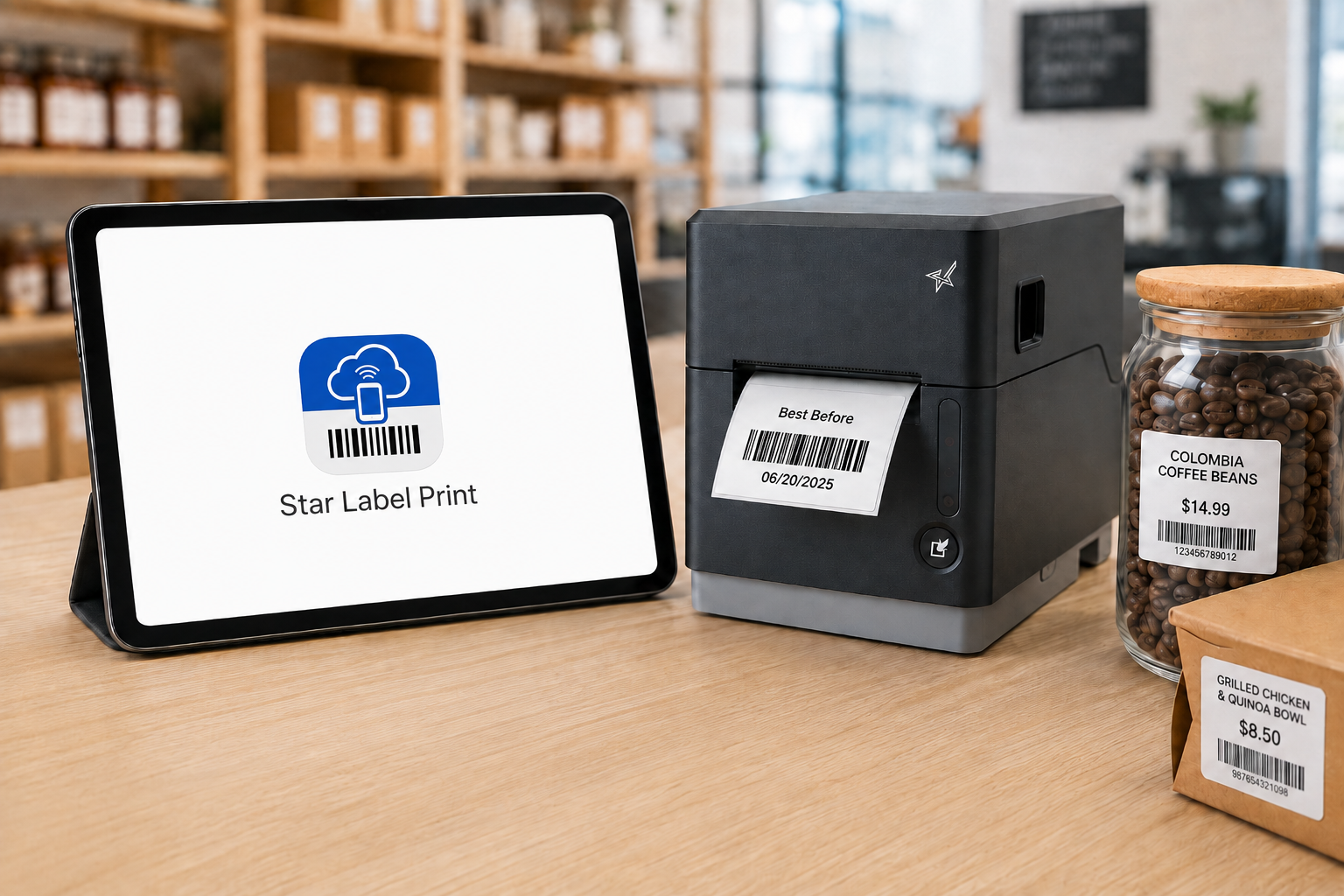
Star Label Print is Star Micronics’ mobile label printing app for iPhone and iPad. It allows users to create and manage labels on a mobile device and send them to a compatible Star label printer over LAN or Bluetooth.
The app can be used without a separate desktop labeling program for routine label creation and printing.
Users can create their own designs or customize pre-designed templates, enter individual product information, save labels for later use, and manage product data within the app.
Organize Products into Groups, Categories, and Items
Star Label Print organizes product information into three levels:
Groups → Categories → Items
A retailer, for example, could create a group for a department, categories for different product types, and individual items within each category.
That gives employees a structured way to locate the product they need rather than searching through an unorganized collection of labels.
Design Labels in the App
Users can build and edit label layouts on the mobile device. Label designs can include elements such as:
Text
Barcodes
QR codes
Images
Lines
Shapes
Variable product information
Frequently used designs can be saved so employees do not have to rebuild the layout whenever another label is needed.
Import Product Information with CSV Files
Star Label Print supports CSV import for businesses that already maintain product information in a spreadsheet or another structured data source. Instead of manually entering each item individually, product information can be imported into the app. The fields in the CSV need to correspond with the fields used by the label template.
This makes CSV particularly useful when a business needs to prepare labels for a larger product catalog.
Capture Item Information with a Camera
Star Label Print also provides an image-based option for adding or editing item information. A user can take a photo with the iPhone or iPad or select an existing image and use optical character recognition, or OCR, to read information from it.
OCR controls allow the user to determine which information should be captured and adjust settings such as language and sensitivity. For example, an employee replacing an existing product label may be able to capture information from that label rather than typing every field from scratch.
JSON Label Design Import for ISVs and Developers
Star Label Print also supports importing label designs using JSON. This capability serves a different purpose from CSV import. CSV import is for product and item data. JSON import is for the label design itself.
The JSON capability is primarily relevant to ISVs, developers, and organizations that want to prepare predefined label designs for business owners. Rather than asking each employee or location to manually recreate a particular layout in the app, a developer can define the required label structure and make that design available for import.
Required design parameters include information such as the design title, media dimensions, and print dimensions. This gives Star Label Print two distinct ways to bring outside information into the app:
CSV: Import the information that changes from product to product.
JSON: Import the structure and design of the label.
For most everyday employees, CSV product management and the app’s built-in label editor will be the more relevant functions. JSON provides another option when an ISV or developer is involved in defining the labeling workflow.
Create the Label Where the Information Is
The main advantage of a mobile label printing app is not that the printer moves. It is that the employee no longer has to bring every labeling task back to a desktop computer.
A damaged barcode can be addressed while counting inventory. A price can be updated while an employee is standing at the shelf. A food label can be created in the prep area. A product label can be prepared while merchandise is being received. The smartphone or tablet handles the label creation. The compatible label printer handles the physical print.
With Star Label Print, businesses using supported Star printers can bring those two parts of the workflow together without requiring a desktop computer for every label.
Frequently Asked Questions About Mobile Label Printing Apps
What is a mobile label printing app?
A mobile label printing app is software that allows users to prepare labels on a smartphone or tablet instead of using desktop labeling software.
Depending on the app, users may be able to create templates, enter product information, generate barcodes or QR codes, import data, and send the completed label to a compatible printer.
Can an iPhone or iPad be used to create labels?
Yes. A compatible label printing app can turn an iPhone or iPad into the interface used to design, edit, and manage labels.
The mobile device then sends the completed print job to a separate compatible label printer.
What is the Star Label Print app?
Star Label Print is a mobile label printing app from Star Micronics for iPhone and iPad. Users can create and save label designs, manage product information, create barcodes and QR codes, import product data, and send labels to compatible Star printers.
Which operating systems support Star Label Print?
Star Label Print is currently available for iPhone and iPad, requiring iOS 17.0 or later or iPadOS 17.0 or later. The app is not currently available for macOS, Android, Windows, or Linux.
Can Star Label Print import product information?
Yes. Star Label Print supports CSV import for product and item information.
Businesses can use a CSV file to bring multiple product records into the app rather than entering each item individually. The CSV fields need to correspond with the fields used by the applicable label template.
What is JSON import used for in Star Label Print?
JSON import is used to bring a label design into Star Label Print rather than product data.
This feature is primarily intended for ISVs, developers, and organizations that want to create predefined label layouts that can then be imported by users.
CSV and JSON therefore serve different purposes: CSV handles product information, while JSON handles label design.
Can Star Label Print create barcode and QR code labels?
Yes. Star Label Print supports barcode and QR code elements that can be incorporated into label designs along with text, images, shapes, and variable product information.
What can Star Label Print be used to label?
Star Label Print can support applications such as product and price labels, shelf labels, markdown tags, inventory and restocking labels, food expiration and ingredient labels, barcode labels, and branded product or packaging labels.
Which printers support Star Label Print?
Star Label Print currently supports the TSP100IV SK with firmware 2.0 or later, mC-Label3 with firmware 1.0 or later, and mC-Label2 with firmware 1.0 or later.
The printer must also use a connection supported by the app, such as LAN or Bluetooth.
Wi-Fi printer setup gives businesses more options for placing receipt and label printers. A wireless printer can operate at a checkout counter, pickup station, prep area, kiosk, or other location where running an Ethernet cable may be difficult.
Connecting a printer to a wireless network, however, has traditionally required several manual steps. Users may need to find the printer’s temporary network, open a configuration page, enter network credentials, and confirm that the printer received an IP address.
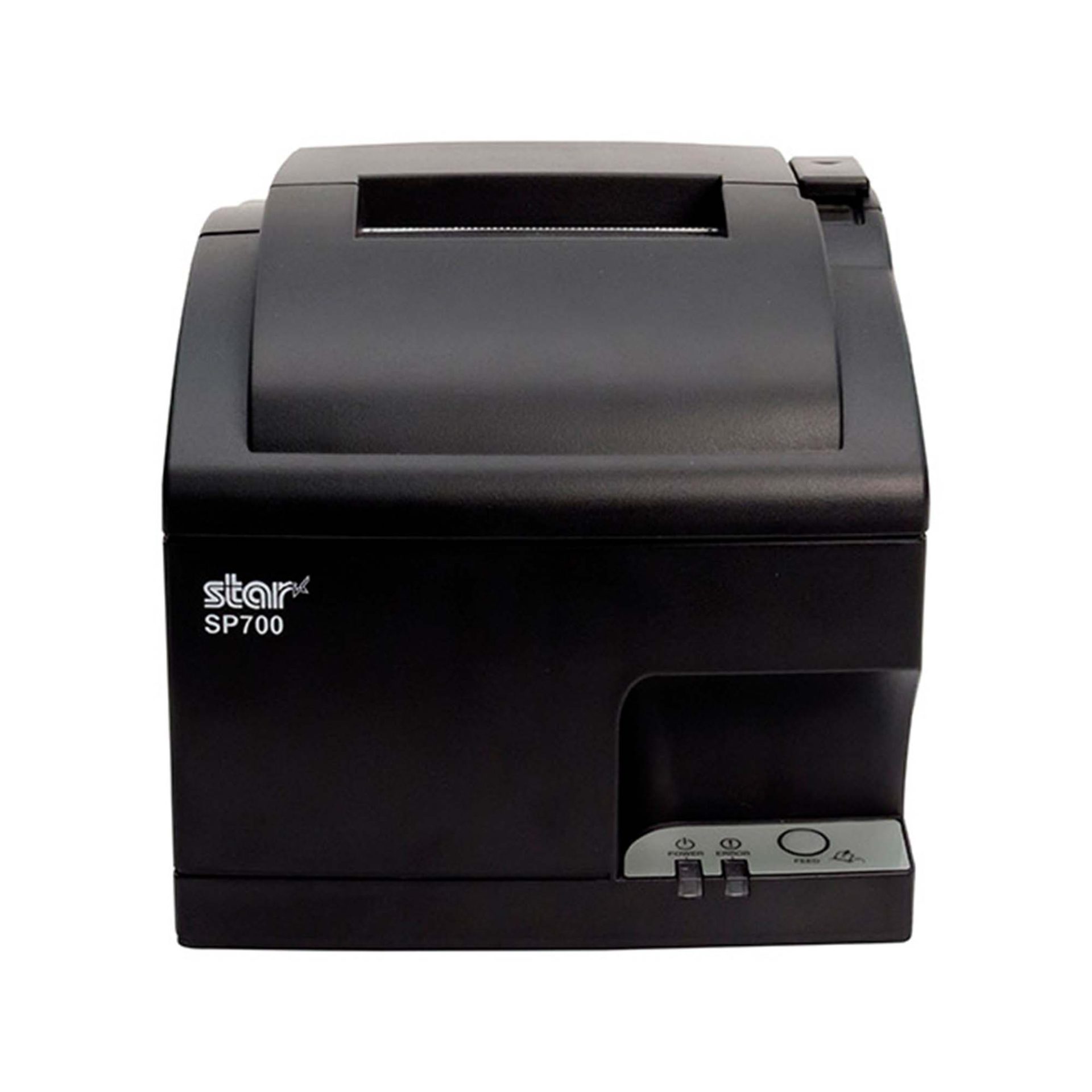
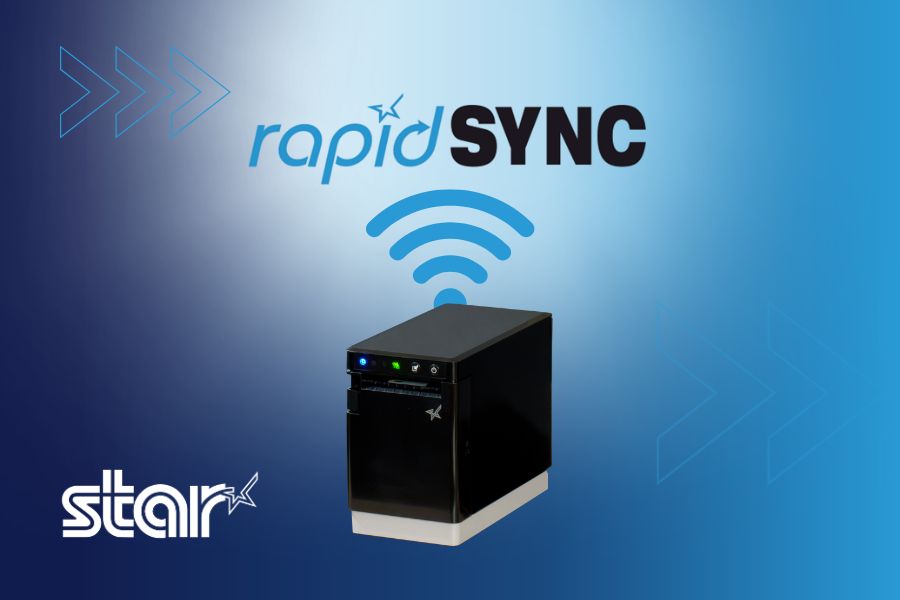
Star Micronics created rapidSYNC, its Bluetooth Low Energy (BLE)-based setup technology, to make that process easier. Available on select Star receipt and label printers, rapidSYNC uses the Star Quick Setup Utility to guide users through Wi-Fi printer setup with a smartphone or tablet, without relying on the traditional captive portal process. For users who prefer the standard QR code setup method, that option is also available on supported models.
Once setup is complete, the printer produces a network diagnosis confirming whether it connected successfully.
Star Micronics’ rapidSYNC is Bluetooth Low Energy (BLE)-based Wi-Fi onboarding technology for supported receipt and label printers. It helps users transfer their wireless network name and password to the printer without navigating printer buttons or entering settings directly on the hardware.
Star product materials may also use the term WLAN, or wireless local area network. In this article, WLAN and Wi-Fi both refer to the wireless network the printer uses to receive print jobs.
Star’s rapidSYNC is a setup process, not a printing protocol. Bluetooth Low Energy is used to detect the printer and transfer network settings during setup, while the printer communicates over Wi-Fi after the connection is established.
Supported printers also produce a wireless network diagnosis after setup. The printout confirms whether the connection succeeded and provides information such as the printer’s assigned IP address.
How Does rapidSYNC Wi-Fi Printer Setup Work?
Star’s rapidSYNC uses the Star Quick Setup Utility and Bluetooth Low Energy (BLE) to guide Wi-Fi printer setup on supported models. Some Star printers also offer a separate QR-code-based setup method for users who prefer a traditional captive portal process.
Set Up Wi-Fi with the Star Quick Setup Utility
The Star Quick Setup Utility provides guided Wi-Fi printer setup from a compatible iOS or Android device.
Choose the printer from the list of detected devices.
Enter the Wi-Fi network name and security key.
Bring the mobile device close to the printer when prompted.
Wait for the printer to produce its wireless network diagnosis.
The network name and password are case-sensitive, so users should confirm both before beginning setup. When the printer connects successfully, the diagnosis page displays “Successful” along with the printer’s IP address. The utility also allows users to continue configuring additional printers without restarting the process.
Alternative: Set Up Wi-Fi with a QR Code
Supported TSP143IV X4 models also provide a QR-code-based Wi-Fi setup option that does not require the Star Quick Setup Utility. This is a separate setup method from rapidSYNC.
The process includes:
Power on the printer.
Wait for the printer to produce the WLAN setup QR code.
Scan the code with a smartphone or tablet.
Open the printer’s web configuration page.
Select the business Wi-Fi network.
Enter the network password and save the settings.
Review the printed network diagnosis.
This option uses the printer’s temporary wireless network to open its configuration page. Once the business network information is saved, the printer disconnects from the temporary network and connects to the selected Wi-Fi network.
Which Star Printers Support rapidSYNC?
Star’s rapidSYNC is available on select Star receipt and label printers and uses Bluetooth Low Energy (BLE) with the Star Quick Setup Utility for Wi-Fi setup. Supported models may also offer QR code setup as a separate alternative.
Compatible Printer
Primary Use
rapidSYNC Setup
Alternative Wi-Fi Setup
Wireless Connection
TSP143IV X4
Thermal receipt printing
Star Quick Setup Utility via BLE
QR code
Dual-band 2.4 GHz and 5 GHz Wi-Fi
TSP143IV SK X4
Repositionable linerless label printing
Star Quick Setup Utility via BLE
QR code
Dual-band 2.4 GHz and 5 GHz Wi-Fi
mC-Label2 MCL21CWBi and MCL21CWBi LBL
Labels and receipts
Star Quick Setup Utility via BLE
QR code
Wi-Fi and Bluetooth
TSP143IV X4 Thermal Receipt Printer
The TSP143IV X4 is a 3-inch thermal receipt printer with USB-C, Ethernet, WLAN, and Bluetooth connectivity. It supports both 2.4 GHz and 5 GHz wireless networks and offers rapidSYNC Wi-Fi setup through the Star Quick Setup Utility using Bluetooth Low Energy (BLE). Supported models also provide QR-code onboarding as a separate Wi-Fi setup option.
The printer is designed for receipts, return documentation, order tickets, and other point-of-sale printing in retail, restaurant, hospitality, and service environments.
TSP143IV X4 Thermal Receipt Printer
The TSP143IV series thermal receipt printer from Star Micronics is 20% smaller than its predecessor, offering high-speed printing with USB, LAN, WLAN, and Bluetooth connectivity. With CloudPRNT Next, dual-band WLAN, and Android Open Accessory (AOA) support, it ensures seamless compatibility across Windows, iOS, Android, and cloud-based applications, making it an efficient, adaptable solution for modern POS environments.
Like the receipt-printing model, it includes USB-C, Ethernet, WLAN, and Bluetooth connectivity. It supports dual-band 2.4 GHz and 5 GHz Wi-Fi and offers rapidSYNC setup through the Star Quick Setup Utility using Bluetooth Low Energy (BLE). QR-code onboarding is also available as a separate Wi-Fi setup option. Diagnostic printouts confirm whether the wireless connection succeeded.
TSP143IV SK Sticky Label Printer
The TSP143IV SK by Star Micronics sets a new standard for compact, eco-friendly liner-free label printing using residue-free removable sticky labels. It offers advanced connectivity options like Bluetooth, USB-C, Wi-Fi, and AOA support for today’s diverse business setups.
Wireless mC-Label2 X4 multifunction label printer models, including the MCL21CWBi and MCL21CWBi LBL, support rapidSYNC Wi-Fi setup through the Star Quick Setup Utility using Bluetooth Low Energy (BLE). QR-code onboarding is also available as a separate Wi-Fi setup option.
With rapidSYNC, users enter the network credentials on a smartphone or tablet and transfer them to the printer through BLE-assisted setup. The app-free QR-code method uses printed QR codes to connect the device to the printer’s temporary network and open its web configuration page.
mC-Label2 Multifunction Label Printer
The mC-Label2 packs powerful features into a compact, front-loading design, including high-precision 300 dpi resolution, support for linerless, die-cut, receipt, and continuous media, and connectivity options like USB-C, LAN, WLAN, Bluetooth, and Apple MFi-certified pairing.
Star’s rapidSYNC can be used during initial printer installation or whenever a supported printer needs new wireless network settings using Star’s BLE-based setup method.
Common situations include:
Installing a new receipt or label printer
Moving a printer to another location
Connecting a printer after replacing a router
Updating a printer after changing the Wi-Fi name or password
Adding printers at a new store or restaurant
Configuring multiple printers during a rollout
Installing a printer where Ethernet cabling is unavailable
Reconnecting a printer after network settings have been reset
For multi-printer deployments, the Star Quick Setup Utility allows users to configure another printer after completing the first connection. The printed network diagnosis also gives installers an IP address they can record for testing, POS configuration, or technical support.
What Should You Check Before Wi-Fi Printer Setup?
A few checks before installation can prevent common connection problems.
1. Confirm the Exact Printer Model
Not every version of a printer includes WLAN. Check the model number and interface specifications before starting a Wi-Fi printer setup.
For example, the TSP143IV X4 includes Wi-Fi and Bluetooth, while the TSP143IV UE is a wired USB and Ethernet model. Star’s rapidSYNC applies to supported WLAN-equipped models and uses Bluetooth Low Energy (BLE) during setup.
2. Have the Correct Network Credentials
Confirm the following information:
Wi-Fi network name, also called the SSID
Case-sensitive Wi-Fi password
Correct business network
Network frequency supported by the printer
Avoid connecting business printers to a public or customer guest network unless that network is specifically configured for POS hardware.
3. Check the Wireless Signal
Place the printer where it can maintain a stable connection to the wireless access point. Walls, metal equipment, distance, and crowded wireless channels can affect signal strength.
The TSP143IV X4 and TSP143IV SK X4 support both 2.4 GHz and 5 GHz networks. A 2.4 GHz network typically reaches farther, while 5 GHz may provide less interference and more bandwidth over shorter distances.
4. Reset Old Network Settings When Necessary
A printer that was previously connected to another network may retain its old wireless settings. Resetting the printer’s network configuration may be necessary before connecting it to a replacement router or a network with a new SSID.
5. Save the Network Diagnosis
After setup, keep the printed diagnosis page until the printer has been tested with the POS or business application. The IP address and connection status can help identify whether a problem is related to the network, printer, or software configuration.
Connect Supported Star Printers with rapidSYNC
Wireless printer installation should not require employees or installers to work through complex printer menus. Star rapidSYNC provides a guided Wi-Fi printer setup process using Bluetooth Low Energy (BLE), a smartphone or tablet, and the Star Quick Setup Utility. Supported models may also offer QR-code onboarding as a separate Wi-Fi setup option.
The right rapidSYNC-compatible printer depends on what the business needs to print:
Choose the TSP143IV X4 for thermal POS receipts.
Choose the TSP143IV SK X4 for 3-inch repositionable linerless labels.
Choose the mC-Label2 MCL21CWBi or MCL21CWBi LBL for compact 2-inch all-media printing.
Contact Star Micronics to compare compatible models, confirm POS compatibility, or plan a multi-location printer deployment.
The Case for Sourcing POS Hardware from a Single Manufacturer
Discover how retailers, restaurants, and solution providers can reduce complexity, improve support, and simplify growth with a unified POS hardware ecosystem.
Frequently Asked Questions About rapidSYNC Wi-Fi Printer Setup
What is Wi-Fi printer setup?
Wi-Fi printer setup is the process of connecting a printer to a wireless network so it can receive print jobs from POS systems, computers, tablets, or mobile devices without an Ethernet cable.
What is rapidSYNC?
rapidSYNC is Star Micronics’ Bluetooth Low Energy (BLE)-based Wi-Fi printer setup technology for supported receipt and label printers. Using the Star Quick Setup Utility on a smartphone or tablet, users can transfer wireless network settings to the printer in just a few steps.
Which Star printers support rapidSYNC?
Compatible printers include the TSP143IV X4 thermal receipt printer, TSP143IV SK X4 linerless label printer, and wireless mC-Label2 X4 models, including the MCL21CWBi and MCL21CWBi LBL.
These models support rapidSYNC through the Star Quick Setup Utility using Bluetooth Low Energy (BLE). Supported models may also offer QR-code onboarding as a separate Wi-Fi setup option.
Do I need an app to use rapidSYNC?
Yes. Star’s rapidSYNC uses the Star Quick Setup Utility and Bluetooth Low Energy (BLE) to configure Wi-Fi on supported printers.
Some supported Star printers also provide QR-code onboarding that does not require the utility. That is a separate Wi-Fi setup method from rapidSYNC.
Does rapidSYNC use Bluetooth or Wi-Fi?
rapidSYNC uses Bluetooth Low Energy (BLE) to detect the printer and transfer wireless network credentials during setup. After configuration, the printer connects to the selected Wi-Fi network to receive print jobs.
How do I reconnect a printer after changing the Wi-Fi password?
Use the Star Quick Setup Utility and rapidSYNC to enter the new Wi-Fi network credentials and transfer them to the printer through Bluetooth Low Energy (BLE). Supported models may also offer QR-code setup as a separate option.
After configuration, review the printed network diagnosis to confirm the connection. A network reset may be required if the printer retains its previous settings.
Does rapidSYNC support 2.4 GHz and 5 GHz Wi-Fi?
Frequency support depends on the printer. The TSP143IV X4 and TSP143IV SK X4 support both 2.4 GHz and 5 GHz wireless networks. Check the specifications for the exact model before installation.
How do I know whether Wi-Fi printer setup was successful?
The printer automatically produces a wireless network diagnosis after configuration. A successful connection printout displays “Successful” and includes the printer’s assigned IP address.
Can rapidSYNC be used to configure multiple printers?
Yes. Printers can be configured one at a time with the Star Quick Setup Utility. After completing one setup, the utility provides an option to continue with another printer, which is useful when installing multiple devices at one location.
As digital payment options continue to expand, some businesses are considering going cashless. Mobile wallets, contactless cards, QR codes, buy now, pay later (BNPL), and even cryptocurrency offer customers more ways to pay while helping merchants speed up checkout and reduce cash handling.
However, cash remains an important payment method for millions of consumers. In response, a growing number of states and cities have enacted cash acceptance laws that require certain businesses to accept cash for in-person purchases. Understanding where these laws apply and implementing effective cash management practices can help merchants stay compliant while serving customers who choose to pay with cash.
Cash is no longer the most common payment method in the United States, but it remains an important part of the payment landscape. According to the Federal Reserve Financial Services’ 2026 Diary of Consumer Payment Choice, consumers use debit and credit cards for about two-thirds of transactions, while cash accounts for about one in seven payments. Although cash use has fallen by roughly half since 2016, it has remained relatively stable over the past six years despite the continued growth of digital payment options.
Cash also remains more common among certain groups. Adults over age 55, rural consumers, and households earning less than $25,000 per year are more likely to pay with cash than other demographics.
The study also found that:
76% of consumers carry cash, averaging $69 on hand.
45% keep cash in reserve for emergencies, averaging $364.
90% expect to continue using cash in the future.
These findings help explain why many lawmakers continue to support cash acceptance laws. While digital payments continue to grow, cash remains an essential payment option for millions of consumers.
Why Are States Passing Cash Acceptance Laws?
As more businesses choose to go cashless, lawmakers in several states and cities have enacted cash acceptance laws to ensure consumers can continue using U.S. currency for in-person purchases.
These laws are intended to prevent businesses from excluding customers who rely on cash, including:
People without access to banking services or digital payment methods
Older adults, who are more likely to use cash for everyday purchases
Consumers who prefer cash for privacy or budgeting
Individuals who keep cash on hand for emergencies or unexpected situations
While the purpose of these laws is consistent, the specific cash acceptance requirements vary by state and city.
For merchants, that means understanding whether cash acceptance laws apply where they operate and implementing cash management practices that help them remain compliant.
Where Are Businesses Required to Accept Cash?
Several states and cities have enacted cash acceptance laws requiring certain businesses to accept cash for in-person transactions. While the requirements and exemptions vary, merchants should understand the laws that apply where they operate.
States with Cash Acceptance Laws
Massachusetts was the first state to require merchants to accept cash, passing legislation in 1978. More recently, additional states have adopted similar laws:
2019: New Jersey and Rhode Island
2021: Colorado and Connecticut (Connecticut exempts parking facilities and wholesale clubs.)
2022:
Delaware (exempts major entertainment and sports venues)
Oregon (allows merchants to refuse certain denominations, such as $50 and $100 bills)
Tennessee (requires merchants to accept cash for all transactions)
Includes penalties of up to $1,000 for non-compliance
Cities with Local Cash Acceptance Laws
Several cities also require businesses to accept cash, even if their states have not adopted statewide legislation, including:
Philadelphia
San Francisco
Detroit
Washington, D.C.
Several states and cities have enacted cash acceptance laws requiring certain businesses to accept cash for in-person transactions.
How to Optimize Cash Management
Whether a business is required to accept cash under cash acceptance laws or chooses to offer cash as a payment option, an effective cash management strategy helps improve security, accountability, and cash handling consistency.
Choose the Right Cash Drawer
Start by selecting a cash drawer that fits your business’s needs. Consider:
Cash volume your business handles each day
Security requirements for your environment
Access control options for employees
Till configurations that support your preferred bill and coin organization
Choosing the right cash drawer supports faster cash transactions and more secure cash handling.
Establish Cash Handling Best Practices
Develop clear procedures for handling cash throughout the day. Employee training should include:
Scheduled cash drops
Secure transport from the cash drawer to the safe
End-of-shift balancing procedures
Policies for handling discrepancies
Consistent processes help reduce theft, errors, and unnecessary losses.
Control Cash Drawer Access
Connecting the cash drawer to the POS system helps improve both security and accountability. The drawer opens only when triggered by a cash sale or receipt printing and remains locked unless a manager authorizes a refund, void, or other exception.
POS-controlled access also creates a clear record of which employee accessed the drawer, making discrepancies easier to investigate.
Perform Regular Cash Drawer Audits
Regular audits help verify that drawers balance correctly and that employees are following established cash management procedures. Reviewing cash activity routinely can identify process issues early and reinforce accountability across the team.
Comply with Cash Acceptance Mandates Efficiently and Effectively
Cash acceptance laws require many businesses to continue accepting cash, even as digital payments become more common. Complying with those requirements starts with reliable cash management.
A secure cash drawer, controlled access through the POS system, and consistent cash handling procedures help businesses accept cash efficiently, reduce discrepancies, and maintain accountability at the checkout.
Cash Management Solutions from Star Micronics
Businesses that accept cash need hardware that helps secure the till, control drawer access, and improve accountability. Whether complying with cash acceptance laws or simply providing customers with more payment options, the right cash management solution can help businesses manage cash more securely and efficiently.
Star Micronics offers cash management solutions for retail, restaurants, hospitality, and other service businesses, including:
CD5 Max Series Cash Drawers: Built for high-volume cash transactions, these durable cash drawers provide dependable performance and multiple configuration options to support secure cash handling.
mC-Connect Drawer: Add USB, Ethernet, Wireless LAN, and Bluetooth® Low Energy connectivity to cash drawers with standard RJ-12 connectivity. The mC-Connect Drawer enables direct communication with POS systems, tablets, mobile devices, and cloud applications while continuing to support traditional printer-driven cash drawer setups.
CD5 Max Series Cash Drawers
Designed for high-cash volume businesses, the CD5 Max Series cash drawers deliver durability, security, and sleek design. With all-steel construction, dual lock mechanisms, and under-till compartments for added organization, these drawers are ideal for grocery stores, cannabis dispensaries, and other busy retail settings. Available in multiple sizes and with dual DK and USB interface options.
From traditional POS terminals to modern tablet- and cloud-based systems, Star’s cash management solutions help businesses accept cash securely, control drawer access, and maintain accountability throughout the checkout process.
Frequently Asked Questions About Cash Acceptance Laws
Are businesses legally required to accept cash?
Not always. Cash acceptance laws vary by state and city, so merchants should determine whether the laws apply where they operate. For example, New York’s statewide law requires many retail establishments, food stores, and consumer service businesses, such as hair salons and auto repair shops, to accept cash for in-person purchases. However, some businesses, including legal, accounting, and B2B consulting services, are exempt.
Which states require businesses to accept cash?
Several states have enacted cash acceptance laws, including Massachusetts, New Jersey, Rhode Island, Colorado, Connecticut, Delaware, Oregon, Tennessee, Montana, and New York. Some cities, including Philadelphia, San Francisco, Detroit, and Washington, D.C., also have local cash acceptance requirements. Because these laws continue to evolve, merchants should verify the requirements where they operate.
Are there exemptions to cash acceptance laws?
Yes. Some jurisdictions allow exemptions or restrictions. For example, Oregon allows merchants to refuse certain bill denominations, while Connecticut exempts parking facilities and wholesale clubs. Merchants should review applicable laws and seek legal guidance when establishing cash acceptance policies.
Why are states passing cash acceptance laws?
Many lawmakers view cash as an essential payment option for consumers who do not have access to banking services, prefer using cash for privacy or budgeting, or keep cash available for emergencies. Cash acceptance laws help ensure these consumers are not excluded from making in-person purchases.
How can merchants that accept cash reduce theft and employee fraud?
Connecting the cash drawer to the POS system helps improve security and accountability. The drawer opens only for authorized transactions, employee activity is recorded, and managers can review transaction logs and reconciliations to identify discrepancies more quickly.
What technologies improve cash management?
In addition to secure cash drawers and cash drawer controllers, merchants can improve cash management with smart safes, counterfeit detection devices, POS reporting tools, and analytics that reduce manual handling and improve visibility into cash flow.
How can a POS system improve cash handling accountability?
A POS system records every cash transaction, identifies the employee responsible, tracks refunds and voids, and automates end-of-day reconciliation. These records help managers investigate discrepancies, improve procedures, and maintain greater accountability.
For 50 years, Star Micronics America (SMA) has supported businesses across the United States, Canada, Mexico, and Latin America through major shifts in point-of-sale technology.
From the early days of impact printing to today’s cloud-connected, mobile, and labeling technologies, SMA has adapted alongside the industries it serves, helping businesses across retail, restaurant, hospitality, healthcare, and beyond keep pace with growing operational demands.
But Star Micronics America’s 50-year story is about more than technology.
It is about the people who built it, the partners who grew alongside it, and the customers who trusted Star solutions through decades of industry change.
Across the Americas, SMA has spent five decades supporting businesses through rapid technology shifts, new and evolving workflows, and higher customer expectations.
As we celebrate 50 years of Star Micronics America, we are reflecting on the milestones that shaped us, the culture that continues to guide us, and the people who made it possible.
Star visiting distributors during our Full Stack Tour
A 50-Year History of Adaptation and Growth
The point-of-sale industry has changed dramatically over the last five decades.
What began in an era of traditional impact printing and on-premises systems has evolved into an ecosystem of cloud platforms, mobile devices, online ordering, self-service kiosks, and advanced labeling workflows.
Each shift brought new demands, from faster checkout and order accuracy to cloud-connected workflows and AI.
In response, SMA expanded beyond receipt and kitchen printing to include cloud printing, cloud services, labeling, mobile POS, and a broader range of hardware for modern retail and restaurant operations.
That ability to adapt has allowed Star to meet each new era of technology, customer expectations, and industry demands with practical solutions.
The People Behind 50 Years of Star Micronics America
Ask anyone inside SMA what has kept the company strong for 50 years, and one answer comes up repeatedly: its people.
“The biggest reason Star Micronics America has remained strong for 50 years is its people. Technology and products continue to evolve, but the dedication, expertise, and commitment of our employees have always been at the heart of our success.”
Shazia Shafi, Human Resources Generalist at Star Micronics America
That commitment shows up not only in day-to-day work, but in tenure.
At Star, long careers are part of the culture. Employees with 25, 30, and even more than 40 years of service have helped shape the company through major shifts, market changes, and organizational growth. That kind of longevity creates deep institutional knowledge, but it also says something important about the company itself: people stay because they find opportunities to grow.
One philosophy that has shaped talent development at Star is the idea of having the “right people in the right seats,” a concept popularized in Jim Collins’ Good to Great. At SMA, employees are encouraged to explore new roles, move between departments, and find where their skills and interests best align. Over the years, that flexibility has helped employees build long careers while reinforcing a culture built on collaboration, growth, and change.
Star’s commitment to understanding our employees as individuals and providing equity for their consistent growth has played a major role in the company’s long-term stability and success.
The team at the National Restaurant Show 2026
How Star Micronics America’s Culture Has Evolved
Star’s workplace culture has changed significantly over the decades.
One of the biggest turning points came during COVID.
Before the pandemic, Star operated largely as an office-based organization. Like many companies during that time, that changed quickly. Teams adapted to remote work, new collaboration tools, and new ways of supporting customers and partners. What started as a necessary adjustment ultimately reshaped how the company works today, leading to a more flexible hybrid and remote culture.
That transition tested the company, but it also reinforced one of Star’s core values: collaboration built on trust between teams.
While the workplace changed, the company’s core values remained steady:
Collaboration – fostering open communication, mutual respect, and trust across teams
Innovation – staying curious, proactive, and open to new ways of thinking
Change – embracing growth, improvement, and the ability to adapt in a shifting industry
Those values continue to guide how teams work together across the United States, Canada, Mexico, and Latin America.
That culture extends beyond daily work. Programs like the Yamaguchi Spirit Awards recognize employees who embody Star’s core values of collaboration, innovation, and change. These traditions help reinforce that culture is not just something that happens passively. It is something consciously practiced.
Why People Matter to the Customer Experience
A company’s culture does not stay inside its walls. It shapes every customer interaction, every partner relationship, and every problem solved along the way.
That has been one of the defining parts of Star Micronics America’s 50-year story.
SMA has long been known as a company that is easy to do business with, and that reputation was built by people. It was built by employees who know the products, understand the industries they support, and work together to solve problems quickly and thoughtfully.
It was also built through consistency.
Many customers and partners have worked with the same Star team members for years, sometimes decades. That continuity creates trust. It gives customers direct access to people who understand their business, their workflows, and the challenges they face.
In an industry where technology moves fast, products matter. But trust, experience, and long-term relationships matter just as much, if not more.
For 50 years, Star’s people have helped build both.
Volunteer day at America’s Grow-A-Row Farm in Pittstown, NJ
Looking Ahead to the Next 50 Years of Star
A 50th anniversary is a time to reflect, but also a time to look forward.
As industries continue shifting toward AI, cloud infrastructure, automation, and more connected workflows, Star Micronics America remains focused on supporting those changes with experienced teams and technology that makes a difference.
That next chapter will depend on the same things that built the first 50 years: experienced people, practical innovation, and strong customer relationships.
For employees, partners, and customers, those first 50 years have built something lasting: trust, consistency, and a company they know they can count on.
And if the last five decades are any indication, the next chapter is already taking shape.
Learn More About Solutions from Star Micronics America
Author’s Note: Special thanks to Joey Richholt and Shazia Shafi of Star Micronics America’s HR department for their thoughtful input and timely contributions to this article.
Commercial label printers play an important role in how businesses identify products, communicate workflow information, maintain regulatory compliance, and track inventory. From retail and restaurants to healthcare and fulfillment, labels help employees and customers access important information quickly and consistently.
When a label printer fails, those workflows can slow down. Orders may be delayed, inventory may become harder to track, and important product or compliance information may not be available when needed.
For businesses that rely on labeling throughout daily operations, choosing a durable and reliable commercial label printer can help reduce downtime, support high-volume workflows, and keep labeling processes consistent across the business.
The durability and reliability of a commercial label printer depend on both its physical construction and its internal components. A printer designed for daily commercial use should be built to handle frequent printing, different media types, and the environmental conditions where it will operate.
Key factors that affect durability and reliability include:
Printhead lifespan: The printhead is one of the most important components in any label printer. Longer-life printheads help maintain consistent print quality and reduce replacement frequency.
Cutter durability: In high-volume environments, the cutter may operate thousands of times per day. Durable cutters help reduce jams and incomplete cuts.
Media path design: A well-designed media path helps labels feed smoothly and reduces misfeeds, jams, and wasted labels.
Housing materials and construction: Commercial environments may expose printers to heat, humidity, dust, or cleaning chemicals. Durable materials help the printer withstand these conditions.
Stable connectivity: Reliable wired, wireless, or cloud connectivity helps prevent missed print jobs and keeps workflows moving.
Maintenance accessibility: Printers designed for easy cleaning, media changes, and component replacement are often easier to maintain and less likely to experience preventable downtime.
Reliable commercial label printers are typically characterized by consistent print quality, fewer jams, stable connectivity, and components designed for long-term use.
Choosing a Label Printer for Commercial Environments
Choosing a commercial label printer starts with understanding where and how it will be used. In addition to supporting the label types your operation requires, the printer should be built for the environment where it will operate.
Commercial environments can expose printers to heat, humidity, dust, frequent handling, and cleaning chemicals. A printer designed for these conditions is less likely to require frequent repairs or replacement, which can help reduce long-term ownership costs.
When evaluating a commercial label printer, consider the following:
Printer Form Factor for Different Workspaces
Printer design affects where and how employees use it. Front-loading and top-loading designs can make media changes easier in tight spaces, while wall-mounting options may help free up counter space in kitchens, prep stations, or healthcare environments.
The right form factor depends on the workflow and available space.
High-Volume Printing for Demanding Workloads
Some environments require continuous, high-speed printing throughout the day. This may include labeling restaurant orders, retail inventory, shipping packages, patient medications, or kiosk-generated labels.
A commercial label printer should be designed to keep up with the expected print volume without frequent jams, cutter failures, or overheating.
Support for Multiple Label Types
Commercial labeling needs often vary by application. Some workflows use linerless labels, while others require die-cut labels, receipts, or permanent adhesive labels.
A multifunction label printer can support multiple media types from a single device, allowing businesses to standardize hardware across different workflows while reducing the number of printer models they manage.
Reliable Connectivity
A commercial label printer should maintain stable wired, wireless, or cloud-based connections depending on how the business operates.
For cloud-connected workflows, reliable communication between software and printers is especially important to prevent delayed or missed print jobs.
Easy setup also matters, especially for wireless environments. Features like BLE-assisted Wi-Fi setup, available on Star’s mC-Label2 CWBi models, can help employees connect printers quickly using a smartphone or tablet without complex network configuration.
Easy Printer Maintenance
Routine cleaning and maintenance help prevent adhesive buildup, cutter jams, and print quality issues. Commercial label printers designed with tool-free maintenance, simple media loading, and clear cleaning instructions can make routine upkeep easier for employees and reduce preventable downtime.
The mC-Label series by Star Micronics has tool-free, super easy maintenance.
Why Durable and Reliable Printers Matter in Daily Operations
In many businesses, labels are part of daily workflows. When a label printer stops working, those workflows can slow down or stop entirely.
In a QSR kitchen, a printer failure can delay order packaging or delivery handoff. In an ecommerce fulfillment center, it can interrupt shipping and inventory tracking. In healthcare, missing labels on medications, patient records, or specimens can create serious operational and compliance issues.
Reliable commercial label printers help reduce these risks by supporting consistent print quality, stable connectivity, and dependable performance during high-volume use.
Over time, printer durability also affects ownership costs. A printer built for its environment is less likely to require frequent repairs, component replacements, or full device replacement. This can help businesses reduce downtime, maintain labeling consistency, and extend the useful life of their equipment.
Explore Star Micronics Commercial Label Printers
Choosing the right commercial label printer starts with understanding your environment, print volume, media requirements, connectivity needs, and maintenance expectations. The right printer should match the demands of your workflow and the types of labels your business relies on every day.
Star Micronics offers a range of commercial label printers designed for retail, restaurant, healthcare, fulfillment, and other high-volume environments. From multifunction label printers that support linerless, die-cut, and receipt printing to purpose-built sticky linerless label printers, Star provides options for a wide range of labeling applications.
Explore Star’s Labeling Solutions and Receipt and Label Media to learn more, or contact Star Micronics for help choosing the right commercial label printer for your business.
Frequently Asked Questions About Label Printer Durability and Reliability
What features make label printers more durable for commercial environments?
Durable commercial label printers are typically built with long-life printheads, durable cutters, strong housing materials, stable connectivity, and media paths designed to reduce jams and misfeeds. Easy maintenance access also helps keep the printer operating consistently over time.
How do durable label printers reduce downtime?
Durable printers reduce downtime by using components designed for frequent, high-volume use. Printers built for harsh environments, such as hot restaurant kitchens or healthcare settings with frequent cleaning, are less likely to fail or require frequent repair. Long-life printheads and cutters also reduce replacement frequency.
What should businesses look for in a high-volume commercial label printer?
Businesses should look for print speed, cutter durability, media compatibility, reliable connectivity, and maintenance accessibility. The printer should be designed for the expected daily print volume and the environment where it will operate.
Why is label printer maintenance important for reliability?
Routine maintenance helps prevent adhesive buildup, cutter jams, print quality issues, and media misfeeds. Cleaning the printer regularly helps ensure labels remain readable and barcodes scan correctly.
Can durable label printers support wireless and cloud connectivity?
Yes. Many commercial label printers support wired, wireless, and cloud-based connections. Features like BLE-assisted Wi-Fi setup can also make wireless deployment faster and easier for employees.
How do multifunction label printers improve commercial workflows?
Multifunction label printers can support receipts, linerless labels, die-cut labels, and other media types from a single device. This helps businesses reduce the number of printer models they manage while supporting different workflows with one platform.
Why does media compatibility matter in commercial label printing?
Different workflows require different label formats and adhesive types. Choosing a printer that supports the required media helps ensure consistent printing, proper label application, and reliable performance.
How do durable label printers lower the total cost of ownership?
Durable label printers can reduce repair costs, extend equipment lifespan, and minimize downtime. Over time, this can lower replacement frequency and reduce interruptions to daily operations.
Are linerless label printers reliable for high-volume environments?
Yes. Linerless label printers are commonly used in high-volume environments because they allow for faster application and fewer media roll changes. Since linerless labels do not use backing paper, they also reduce waste and help keep workspaces cleaner.
What industries benefit most from durable commercial label printers?
Durable commercial label printers are commonly used in retail, restaurants, ecommerce fulfillment, healthcare, pharmaceuticals, manufacturing, airports, and logistics. Any business that depends on consistent labeling can benefit from a printer designed for long-term, high-volume use.
A kitchen display system (KDS) helps restaurants manage orders digitally by sending information from the point of sale (POS) system directly to food preparation stations. This gives kitchen teams real-time visibility into incoming orders, modifiers, and fulfillment priorities for dine-in, drive-thru, pickup, and delivery channels.
However, once food preparation begins, orders move through physical workflows. Items are prepared, packaged, staged, picked up, and delivered. Restaurant labels for KDS workflows help carry order information beyond the screen, ensuring important details remain attached to the order throughout preparation, packaging, pickup, and delivery.
From beverage labels and allergy alerts to catering labels and tamper-evident seals, the right labels help restaurants extend KDS communication throughout the operation.
A kitchen display system (KDS) manages order information digitally, but restaurant operations still depend on physical workflows. Orders move through multiple stages before reaching the customer, including:
Food preparation
Beverage preparation
Packaging
Expo
Pickup
Delivery
Restaurant labels for KDS workflows help carry order information beyond the screen and keep it attached to the order as it moves through these stages.
As orders move between stations, labels can communicate customer names, modifiers, allergy information, beverage customizations, pickup instructions, delivery details, and other important information. Keeping these details visible throughout preparation and fulfillment reduces reliance on verbal communication and helps teams coordinate complex dine-in, drive-thru, pickup, and delivery operations.
Types of Restaurant Labels for KDS Workflows
A KDS communicates order information digitally, but labels help carry that information through food preparation, packaging, pickup, and delivery. Different types of restaurant labels support different stages of the workflow, helping employees identify orders, manage modifications, communicate food safety information, and direct completed orders to the correct destination.
1. Drive-Thru and Takeout Labels
An integrated system can generate labels along with sending orders to the KDS from the drive-thru, online ordering platform, or self-ordering kiosk. Labels can be applied to trays, containers, cups, or bags so order information remains attached to the order throughout preparation and fulfillment. Labels also ensure the team directs the order to the right place, whether the front counter, the drive-thru, or order pickup.
2. Allergy and Exception Order Labels
Allergies and food sensitivities have become more common, requiring special order preparation so diners can safely enjoy their meals. Furthermore, many customers have strong food preferences and request items prepared in specific ways.
Allergy and exception order labels help ensure modifications remain visible as the order moves between preparation, packaging, and pickup stations. Exception order labels clearly inform food prep of changes to the way they typically prepare menu items. They also flag orders for the expeditor, server, or take-out counter worker that the kitchen prepared the order as the customer requested.
3. Made-to-Order Food Labels
Although a KDS has become a standard tool in quick service restaurants (QSRs), this technology offers benefits to the whole range of food service environments. When a store or café sells made-to-order (MTO) items, labels include vital information that helps customers make informed decisions and to keep the business in compliance.
MTO food labels can include product name, description, ingredients, nutrition information, and allergen or dietary restriction alerts. Businesses can also customize MTO food labels with branding elements such as their name and logo.
4. Beverage and Barista Labels
Customers have strong opinions about how they want their coffee, espresso, or tea orders, requesting various types of milk, creamer, sweetener, flavors, and other options. Beverage orders often include customizations such as milk selections, flavors, sweeteners, and preparation instructions.
Labels help baristas identify these details quickly and keep drinks matched to the correct customer throughout preparation and pickup. Labels with each detail of the order simplify order prep, and repositionable labels can follow orders from the POS system, to order prep, and then to the customer’s cup.
Tracking prepared items or MTO foods can help shops manage their inventory, reduce shrinkage, and minimize waste. Barcoded labels generated during KDS workflows allow employees with scanners to capture data as items are placed into coolers or display cases, including their sell-by dates. Clear, reliable barcode labels also give shops a way to track ingredients’ sources in case of a recall and for fast price scanning at the checkout.
6. Catering Labels
If a restaurant or store offers catering, labels printed during KDS workflows can flag orders for the items they need for completeness, such as condiments, trays, or utensils. Labels can also include food safety instructions, nutrition information, allergen warnings, and serving instructions.
7. Nutrition and Calorie Labels
The FDA requires food service companies to provide nutrition facts to consumers. Although not every dine-in or take-out order has a nutrition label, restaurants must provide calorie counts and ingredient information on request. Restaurants can simplify this process with templated labels that employees print during packaging or order assembly.
8. Order Verification and QC Labels
Once an order is packaged, an expeditor or other restaurant employee cannot easily verify that every item is present by looking at the sealed bag alone. Some restaurants add a POS scale to the workflow to help verify order completeness before pickup or delivery.
A typical order verification workflow may include:
Package the order
Weigh the completed bag
Compare the weight to the expected total shown on the order label
Investigate any significant discrepancies
Release the order for pickup or delivery
If the actual weight differs from the expected weight, employees can review the order and correct missing or incorrect items before the customer receives it. Combined with restaurant labels for KDS workflows, weight-based verification provides another checkpoint to help restaurants catch errors before orders leave the store.
9. Tamper-Evident Labels
When the kitchen team closes a package, they can add a tamper-evident label as the final step. Tamper-evident labels help indicate whether a bag or container has been opened after packaging. They are commonly used for delivery and pickup orders where food safety and package integrity are important.
How to Choose the Right Type of Restaurant Label for KDS Workflow Stages
The right restaurant label depends on both the media type and adhesive required for the workflow. Some KDS applications benefit from linerless labels for fast application, while others require die-cut labels, repositionable adhesives, or permanent tamper-evident labeling.
Linerless Labels
No liner backing
Fast application
Reduced waste
Great for:
beverage labels
takeout labels
pickup labels
food container labels
Die-Cut Labels
Individual label shapes/sizes
Consistent placement
Useful for:
nutrition labels
product identification
barcode labels
made-to-order food labels
Repositionable Linerless Labels
Diamond adhesive (light tack) or full coverage (stronger)
Features to Look for in Restaurant Label Printers for KDS Workflows
Choosing the right restaurant label printer is just as important as selecting the right label media. KDS workflows often support food preparation, beverage stations, packaging, pickup, and delivery operations, so label printers should be able to support a variety of applications and deployment environments.
Multimedia Printing
Printers that support multiple media types, including linerless labels, die-cut labels, and receipts, allow restaurants to standardize hardware across stations. A multifunction printer can support different workflows without requiring separate printer models for each application.
Linerless Label Support
Linerless labels help reduce liner waste and counter clutter while supporting high-volume labeling workflows. Restaurants planning to use linerless labels should choose a printer designed specifically for linerless media.
Cloud Printing Capabilities
Cloud-connected printers can receive print jobs directly from KDS software, online ordering platforms, and cloud-based applications without relying on local print servers.
Support for Multiple Adhesive Types
Different workflows require different label adhesives. Restaurants may use repositionable labels for beverage preparation and internal workflows, while delivery and packaging applications may require permanent or tamper-evident labels.
Fast Print Speeds
High-volume kitchens depend on labels being available when needed. Fast print speeds help prevent delays during peak ordering periods and support continuous order flow.
KDS and POS Compatibility
Restaurant label printers should work with KDS software, POS systems, cloud platforms, and the operating systems used throughout the business. Compatibility can simplify deployment, support, and long-term maintenance.
User-Friendly Maintenance
Restaurant environments are busy, and printer maintenance is often handled by store-level employees. Features such as tool-free maintenance, easy media loading, user-replaceable components, and guided cleaning procedures can help reduce downtime and keep printers operating reliably.
Star Micronics Label Printers for KDS Workflows
Restaurants use a variety of labels throughout KDS workflows, including beverage labels, allergy labels, barcode labels, catering labels, order verification labels, and tamper-evident labels. Supporting these applications requires printers that match the media, adhesive, and workflow requirements of the operation.
Star Micronics offers several printer options for restaurant labels used with KDS systems, including:
mC-Label3 Multifunction Printer
The mC-Label3 supports receipts, die-cut labels, repositionable linerless labels, and permanent linerless labels from a single printer platform. This makes it a good choice for restaurants looking to standardize printing across multiple stations.
The Star Micronics mC-Label3 is a versatile multifunction printer that prints a wide range of labels and receipts, including both permanent and repositionable sticky linerless. It features cloud connectivity and innovative technologies like SteadyLAN and TetherLAN for enhanced printing convenience.
The mC-Label2 provides support for a wide range of label and receipt media in a compact design, making it suitable for food preparation, packaging, pickup, and other labeling applications.
The mC-Label2 packs powerful features into a compact, front-loading design, including 300 dpi resolution, support for linerless, die-cut, receipt, and continuous media, and connectivity options like USB-C, LAN, WLAN, Bluetooth, and Apple MFi-certified pairing (X4 models only).
The TSP143IV SK is designed specifically for sticky linerless label printing and is commonly used for beverage labeling, food container labeling, pickup workflows, and other applications where repositionable labels are beneficial.
The TSP143IV SK by Star Micronics sets a new standard for compact, eco-friendly thermal linerless label printing, offering advanced connectivity options like Wi-Fi and AOA, and efficient, residue-free labels for diverse business needs.
Whether a restaurant is deploying a new KDS or expanding existing workflows, selecting the right label printer helps ensure order information remains visible from preparation through pickup or delivery.
The Missing Link in KDS-Driven Restaurant Workflows
This eBook shows how labeling extends KDS accuracy into real-world workflows, helping restaurants and retailers improve fulfillment, accountability, and consistency across all ordering channels.
Frequently Asked Questions About Restaurant Labels for KDS Workflows
What are restaurant labels used for in KDS workflows?
Restaurant labels help carry order information through physical kitchen workflows after orders appear on a kitchen display system (KDS). They support food prep, packaging, pickup, delivery, catering, and labeling compliance workflows.
How do restaurant labels support KDS workflows?
A KDS communicates order information digitally, while labels help keep that information attached to the order itself as it moves through prep stations, expo, packaging, pickup, and delivery.
What types of restaurant labels are commonly used with KDS systems?
Restaurants commonly use:
Drive-thru and takeout labels
Allergy and exception order labels
Beverage labels
Product ID and barcode labels
Catering labels
Nutrition labels
Tamper-evident labels
Order verification and QC labels
Different labels support different stages of the workflow.
What is the difference between linerless and die-cut restaurant labels?
Linerless labels print continuously without backing paper, helping reduce waste and clutter in high-volume kitchens. Die-cut labels are individually separated and are often used for applications requiring specific label sizes or permanent adhesion.
Why are linerless labels popular in restaurant kitchens?
Linerless labels help reduce liner waste, improve workflow efficiency, and minimize clutter on prep counters and floors. They are especially useful in fast-paced restaurant and QSR environments.
What information should restaurant labels include?
Depending on the workflow, restaurant labels may include:
Order details
Customer names
Allergens or dietary restrictions
Beverage customizations
Nutrition information
Barcodes or QR codes
Sell-by dates
Pickup or delivery details
Why are allergy and exception order labels important?
Allergy and exception order labels help kitchen staff quickly identify orders that require modified preparation. These labels support safer food handling and help reduce communication breakdowns during busy service periods.
How do tamper-evident labels support delivery workflows?
Tamper-evident labels help show customers that delivery bags or food containers have not been opened after packaging. They also help restaurants maintain more secure and organized delivery workflows.
Can restaurant labels be printed automatically from a KDS?
Yes. Many KDS workflows automatically trigger label printing when orders are received, bumped to another prep stage, packaged, or prepared for pickup or delivery.
What should restaurants look for in a label printer for KDS workflows?
Important features include:
Multimedia printing support
Linerless compatibility
Fast print speeds
Compact design
Cloud printing capabilities
Easy KDS integration
Support for repositionable and permanent labels
Why are multimedia label printers useful in restaurants?
Multimedia label printers can print receipts, linerless labels, and die-cut labels from a single device. This helps restaurants standardize hardware across stations and reduce the number of printer models they manage.
How do cloud-connected label printers support KDS workflows?
Cloud-connected printers can receive print jobs directly from KDS software or online ordering platforms without relying on local print servers. This simplifies deployment and supports multi-location restaurant operations more efficiently.
Restaurants today collect more guest information than ever before. Modern restaurant personalization technology, including reservation platforms like OpenTable, Resy, and SevenRooms, helps restaurants capture birthdays, anniversaries, allergies, seating preferences, favorite menu items, and other details that help personalize service.
But collecting information is only the first step.
When a birthday goes unrecognized, a special request is missed, or an allergy note never reaches the server, guests don’t see a workflow breakdown. They see a restaurant that failed to follow through.
The challenge is making sure important details remain visible once guests are seated and service begins. In many restaurants, printed reservation chits (tickets) help bridge the gap between reservation platforms and front-of-house staff, giving servers and managers quick access to guest information at the table.
However, traditional paper chits can easily be lost, misplaced, or blown off the table. As restaurants continue investing in personalization, they also need reliable ways to ensure those details reach the people responsible for delivering them.
Restaurant personalization has become a bigger part of modern hospitality operations. Reservation platforms now allow restaurants to collect far more information about guests before they even arrive, from allergies and seating requests to birthdays, anniversaries, and favorite menu items.
Personalization can include:
Birthday and anniversary celebrations
Allergy and dietary information
Favorite seating areas
Preferred drinks or menu items
VIP guest recognition
Service pacing requests
For restaurants, these details help staff prepare for service, recognize repeat guests, and accommodate special requests more consistently.
The challenge is not collecting the information. Modern reservation platforms already do that well. The challenge is making sure those details remain visible and accessible once the guest is seated and service begins.
Servers and managers move quickly throughout a shift, often handling multiple tables at once. If guest details remain buried inside a reservation platform or are only visible at the host stand, important requests can easily be missed.
Why Restaurants Still Print Reservation Chits
Despite the rise of digital restaurant technology, many restaurants still print reservation chits for one simple reason: physical workflows still matter.
A printed reservation chit creates a fast, visible handoff between the host stand and the front-of-house staff. Once the guest is seated, the chit can stay at the table and communicate important information directly to the server and managers.
The printed chit helps restaurant staff quickly understand the table before the first interaction even begins.
Managers also benefit operationally. A chit left on the table can help indicate whether a server has greeted the guests yet, helping managers monitor service flow during busy shifts.
In many restaurants, this small workflow plays an important role in delivering consistent hospitality.
The Problem With Traditional Reservation Chits
Traditional reservation chits are simple, but they create operational problems.
Because the receipts are lightweight thermal paper, they can easily:
Blow off the table
Fall onto the floor
Get misplaced during service
Become difficult for servers to track
Once the chit disappears, so does the personalization information tied to the guest experience.
To solve this problem, some restaurants improvise by stapling reservation chits to cardstock or heavier paper so they stay visible on the table. While functional, this creates additional operational steps, clutter, and waste during already busy service periods.
A personalization workflow only works if the information remains visible long enough for staff to act on it.
Why Sticky Labels Work Better for Restaurant Personalization
Instead of loose paper receipts, restaurants can print reservation information on repositionable linerless labels that stay attached to the table throughout service. Servers can easily remove and reposition the label without damaging surfaces or leaving residue behind.
This creates several operational benefits:
Personalization details stay visible
Labels do not blow away easily
Servers can move labels as needed during service
Restaurants eliminate the need for staplers and cardstock
Front-of-house workflows become cleaner and more consistent
Repositionable linerless labels also help reduce waste compared to traditional linered labels because there is no liner backing to discard. Star’s TRK repositionable linerless labels are designed specifically for workflows that require temporary adhesion and clean removal, leaving no residue behind.
For restaurants focused on consistent guest experience, small operational improvements like these can make personalization easier to execute in real-world service.
Designed for sticky linerless label printing, the TSP143IV SK allows restaurants to print repositionable labels that can remain attached to tables, trays, food packaging, or other surfaces throughout service.
This helps restaurants:
Keep guest personalization details visible
Improve communication between hosts, servers, and managers
Reduce workflow disruptions caused by lost paper chits
Simplify front-of-house operations
Support more consistent hospitality experiences
TSP143IV SK Sticky Label Printer
The TSP143IV SK by Star Micronics sets a new standard for compact, eco-friendly thermal linerless label printing, offering advanced connectivity options like Wi-Fi and AOA, and efficient, residue-free labels for diverse business needs.
Because the labels are repositionable, servers can remove or relocate them easily during service without leaving residue behind. This creates a cleaner and more professional workflow compared to stapled paper chits or loose thermal receipts.
The TSP143IV SK also supports cloud-connected restaurant environments and modern hospitality workflows, making it easier for reservation platforms and restaurant systems to integrate sticky label printing directly into existing operations.
Why Reservation Platforms Should Support Sticky Label Printing
Reservation platforms continue adding more personalization tools and guest profile features. But restaurants still need reliable ways to communicate that information during service.
Supporting sticky label printing workflows can help restaurants:
Keep guest details visible throughout service
Reduce missed requests or forgotten notes
Improve communication between hosts, servers, and managers
Create more consistent table-side service
Restaurants already use printed reservation chits because physical workflows still matter in busy dining rooms. Sticky linerless labels simply make those workflows easier to manage and more reliably execute.
Personalization Creates Expectations
The moment a guest enters a birthday, anniversary, seating request, allergy, or other preference into a reservation platform, an expectation is created.
If a birthday candle never arrives, a special request is overlooked, or a preferred table isn’t honored, guests rarely know where the breakdown occurred. They don’t know whether the issue was with the reservation platform, the host stand, a lost chit, or a communication gap during service. They only know the restaurant missed an important detail.
In many cases, servers end up carrying the blame for information they never received.
As reservation platforms continue investing in personalization features, helping restaurants consistently deliver on those details may become just as important as collecting them.
Personalization Is Only Valuable If Restaurants Can Execute It
Restaurants often compete on food, service, and atmosphere. Increasingly, they’ll also compete on how well they remember their guests.
A birthday celebration, allergy note, preferred table, or favorite menu item may seem like a small detail on its own. But those details are often what separate a routine dining experience from one guests talk about, review online, and return to again.
Reservation platforms have made it easier than ever to capture guest preferences. The next challenge is helping restaurants consistently deliver on them.
The restaurants that stand out won’t necessarily be the ones that collect the most information. They’ll be the ones that make sure important details never get lost between the reservation and the table.
Frequently Asked Questions About Restaurant Personalization Technology
What is restaurant personalization technology?
Restaurant personalization technology includes digital tools and workflows that help restaurants collect, manage, and act on guest preferences, dining history, allergies, celebrations, and other hospitality-related information.
Why is personalization important in restaurants?
Personalization helps restaurants create better guest experiences, improve customer loyalty, encourage repeat visits, and differentiate themselves in competitive hospitality markets.
What information do reservation platforms collect?
Reservation platforms may collect guest names, birthdays, anniversaries, allergies, seating preferences, favorite menu items, visit history, and other dining preferences.
Why do restaurants print reservation chits (tickets)?
Restaurants print reservation chits to provide servers and managers with fast, visible access to guest details during service. Printed chits help bridge communication between digital reservation systems and front-of-house operations.
What problems do traditional reservation chits create?
Traditional reservation chits can blow away, fall off tables, become misplaced, or get lost during service. This can lead to missed guest requests and inconsistent hospitality experiences.
How can restaurants ensure guest preferences are not overlooked?
Restaurants use a combination of reservation platforms, host stand workflows, reservation chits, labels, and staff communication processes to ensure important guest details remain visible and accessible throughout service. The goal is to make sure information reaches the employees responsible for acting on it.
How do sticky labels improve restaurant workflows?
Sticky labels help keep important guest information visible throughout service, improving communication between hosts, servers, managers, and other restaurant staff.
How can restaurants turn guest data into personalized service?
Collecting guest information is only the first step. Restaurants must ensure guest preferences, celebrations, allergies, and other requests are communicated clearly and remain visible throughout service so staff can consistently act on them.
How can restaurants make personalization details more visible during service?
Restaurants can use reservation chits, sticky labels, and other front-of-house communication tools to keep guest information visible throughout service. Solutions such as the TSP143IV SK linerless sticky label printer by Star Micronics allow restaurants to print repositionable sticky labels that stay with the table and help ensure important details are not overlooked.