Tag: Software Update

  • Mobile Label Printing App: Create Labels Without a Desktop Computer

    Mobile Label Printing App: Create Labels Without a Desktop Computer

    Employees increasingly use smartphones and tablets to manage inventory, look up products, process orders, and complete other work away from a desk. Creating labels, however, can still require a trip back to a computer.

    A missing barcode, updated price, new expiration date, or incoming product may mean stopping the task, opening desktop labeling software, finding the right template, entering the information, and sending the label to a printer.

    A mobile label printing app removes the desktop from that process. Employees can create, edit, and manage labels on a smartphone or tablet, then send them to a compatible label printer from the same device.

    For businesses that create labels throughout the day, that means the information can be entered while the employee is already working with the product, shelf, package, or food item that needs the label.

    Explore Star Labeling Solutions

    What Is a Mobile Label Printing App?

    A mobile label printing app is software for creating, editing, managing, and sending labels from a smartphone or tablet to a compatible label printer.

    Depending on the app, users may be able to:

    • Create and save label templates
    • Enter or update product information
    • Add prices, dates, SKUs, quantities, and other variable data
    • Generate barcodes and QR codes
    • Add logos and images
    • Import product information
    • Organize frequently used labels
    • Send completed labels to a connected printer

    The app handles label creation and product information, while the compatible label printer produces the finished label.

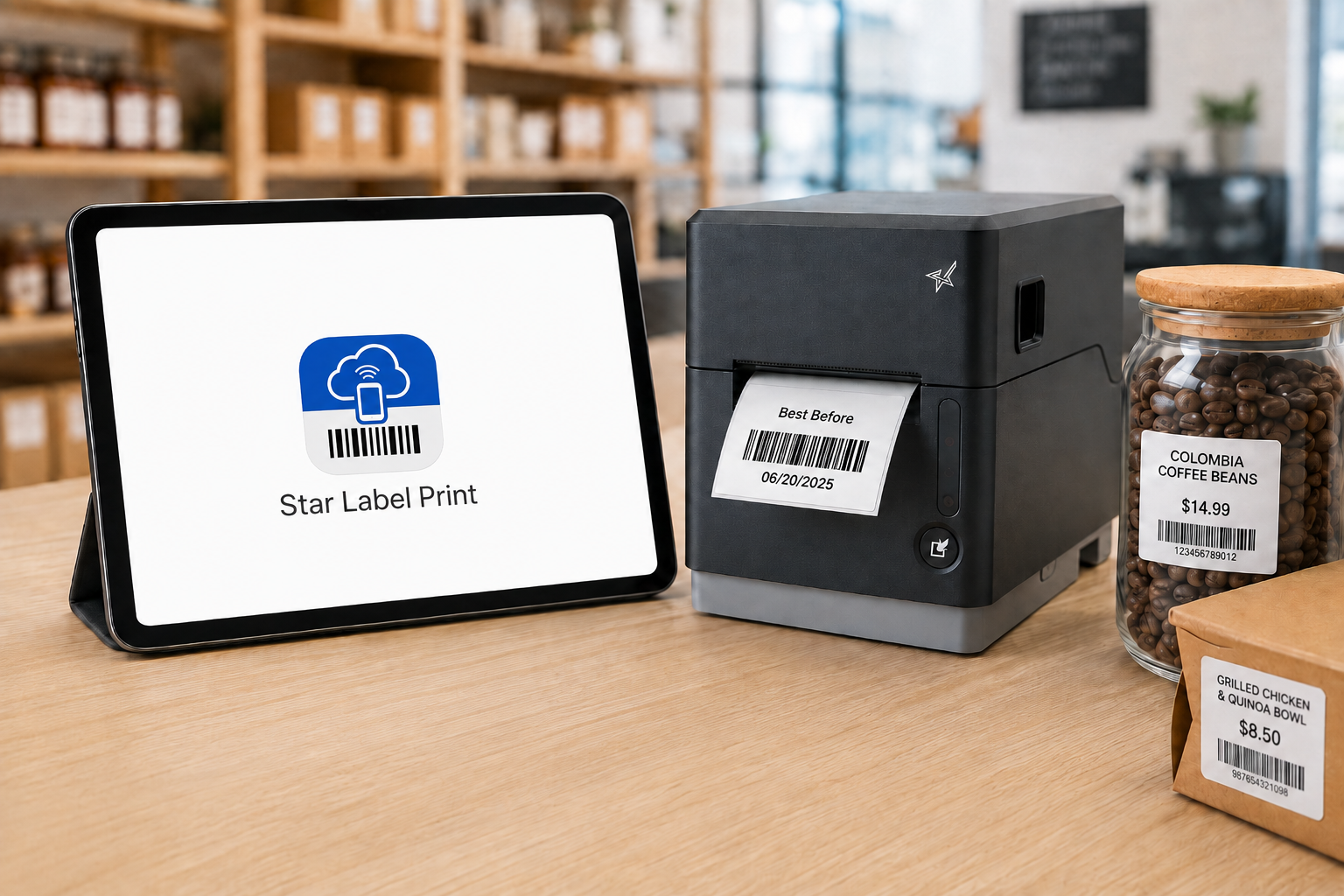
    Star Label Print App is a mobile label printing app For Smartphones and tablets

    Why Move Label Creation Away from the Desktop?

    Consider an employee conducting an inventory count who finds an item with a damaged barcode label.

    In a desktop-based process, that employee may need to:

    • Stop the inventory count
    • Walk to a computer
    • Open the labeling program
    • Find the correct product or label template
    • Enter or verify the product information
    • Send the label to the printer
    • Collect the new label
    • Return to the product

    The same thing can happen when an employee discovers an outdated shelf price, needs an expiration label in a food prep area, or receives merchandise without the correct identification.

    Each interruption may be short. The problem is how often the process is repeated.

    A mobile label printing app lets the employee work with the label information while the product, package, shelf, or food item is still in front of them. That can eliminate several steps between identifying a labeling need and producing the replacement label.

    What Can You Do with a Mobile Label Printing App?

    The exact capabilities vary by app, but several functions are particularly useful when moving label creation away from a desktop.

    • Create and Reuse Label Templates: Frequently used layouts can be saved rather than recreated for each print job. A business might maintain separate designs for product labels, price labels, food rotation labels, inventory labels, or other applications. Employees can select the appropriate design and change only the information that varies.
    • Update Variable Information: Many labels contain information that changes even when the basic design stays the same. Updating those fields from a mobile device allows the employee to verify the information against the actual item before the label is sent to the printer. Changes or updates may include:
      • Product name
      • SKU
      • Price
      • Date
      • Expiration date
      • Quantity
      • Lot number
      • Size
      • Color
      • Location
    • Create Barcode and QR Code Labels: A mobile label printing app can also support barcode label printing and QR code creation. That is useful for product identification, inventory tracking, pricing, asset identification, order information, and other workflows in which information needs to be scanned later.
    • Add Images and Branding: Logos, product images, icons, and other graphics can be incorporated into label designs when the application requires more than text and barcodes. This can be useful for product packaging, branded merchandise, specialty products, or labels customers will see.
    • Import Product Data: For businesses managing more than a handful of items, importing structured product data can be faster than manually creating every record on a mobile device. The appropriate import method depends on the app and what is being imported. Product information and label designs, for example, are two different types of data and may require different formats.
    Star Label Print is a mobile label printing app that allows users to design barcode labels and more from their smartphone or tablet

    Where Can Mobile Label Printing Apps Be Used?

    The value of a mobile label printing app becomes clearer when the employee creating the label is not normally sitting at a desk.

    Inventory and Restocking Labels

    Employees can create or replace inventory labels while receiving, counting, moving, or restocking products. If an item arrives without a barcode or an existing label is damaged, the employee can prepare the replacement while working with the product rather than making a note to fix it later.

    Product, Price, and Shelf Labels

    Retail employees can create product identification labels, price labels, shelf labels, and markdown tags while working on the sales floor. That is particularly useful when prices or product information need to be updated across multiple shelves or departments.

    Food Preparation and Rotation Labels

    Restaurants, grocery stores, convenience stores, and other food businesses can use mobile label creation for:

    • Food identification labels
    • Product rotation labels
    • Expiration or use-by dates
    • Ingredient information
    • Grab-and-go labels
    • Prepared food labels

    An employee working in a prep or storage area can enter the relevant information there and send the completed label to a compatible printer nearby.

    Blog: Food Label Compliance and Traceability in QSR and Grab-and-Go Operations >

    Order and Package Identification

    Labels can also be created for packages, orders, catering items, pickup orders, or other items moving through a fulfillment process. Clear identification can help employees distinguish between similar orders, products, or packages before handoff.

    Asset and Equipment Labels

    Employees performing an inventory audit, equipment installation, or maintenance check can create identification labels for tools, electronics, equipment, and other assets while they are working with the item.

    Branded Product and Packaging Labels

    Small retailers, specialty businesses, makers, and other sellers can use label templates for product names, pricing, logos, or other branding applied to merchandise and packaging.

    Star Label Print App Is A Mobile Label Printing App That Can Design Any Label Type

    What Should You Look for in a Mobile Label Printing App?

    The right app depends on what employees need to print and how product information is managed. Before choosing a solution, consider the following:

    1. Mobile Device Support

    Check which operating systems and devices the app supports. If employees use iPhones or iPads, for example, confirm that the application supports the required versions of iOS or iPadOS.

    2. Label Template Controls

    Consider whether users can create their own templates, customize prebuilt designs, save frequently used layouts, and control which information employees are allowed to change.

    3. Variable Data and Product Management

    If labels frequently change by item, the app should provide a practical way to manage information such as SKUs, prices, dates, quantities, and other fields. For larger product lists, data import can reduce repetitive manual entry.

    4. Barcode and QR Code Support

    Businesses using labels for scanning should verify which 1D and 2D barcode formats are supported and whether barcode data can be populated from product records.

    Explore 1D/2D Barcode Scanners and Imagers: Desktop, USB Handheld, and Wireless >

    5. Printer Connectivity

    The app and printer must be able to communicate through a supported connection such as Bluetooth or a local network. This is separate from whether the employee’s phone or tablet is physically close to the printer. A network connection may allow employees to send labels to a printer located elsewhere in the work area.

    6. Printer and Media Compatibility

    The printer ultimately determines the label widths, media types, resolution, and other physical output options available. The application and printer therefore need to be considered together rather than as separate purchases.

    How Does the Star Label Print App Work?

    Star Label Print is Star Micronics’ mobile label printing app for iPhone and iPad. It allows users to create and manage labels on a mobile device and send them to a compatible Star label printer over LAN or Bluetooth.

    The app can be used without a separate desktop labeling program for routine label creation and printing.

    Users can create their own designs or customize pre-designed templates, enter individual product information, save labels for later use, and manage product data within the app.

    Organize Products into Groups, Categories, and Items

    Star Label Print organizes product information into three levels:

    Groups → Categories → Items

    A retailer, for example, could create a group for a department, categories for different product types, and individual items within each category.

    That gives employees a structured way to locate the product they need rather than searching through an unorganized collection of labels.

    Star Label Print is a mobile label printing app For Any Industry

    Design Labels in the App

    Users can build and edit label layouts on the mobile device. Label designs can include elements such as:

    • Text
    • Barcodes
    • QR codes
    • Images
    • Lines
    • Shapes
    • Variable product information

    Frequently used designs can be saved so employees do not have to rebuild the layout whenever another label is needed.

    Import Product Information with CSV Files

    Star Label Print supports CSV import for businesses that already maintain product information in a spreadsheet or another structured data source. Instead of manually entering each item individually, product information can be imported into the app. The fields in the CSV need to correspond with the fields used by the label template.

    This makes CSV particularly useful when a business needs to prepare labels for a larger product catalog.

    Capture Item Information with a Camera

    Star Label Print also provides an image-based option for adding or editing item information. A user can take a photo with the iPhone or iPad or select an existing image and use optical character recognition, or OCR, to read information from it.

    OCR controls allow the user to determine which information should be captured and adjust settings such as language and sensitivity. For example, an employee replacing an existing product label may be able to capture information from that label rather than typing every field from scratch.

    JSON Label Design Import for ISVs and Developers

    Star Label Print also supports importing label designs using JSON. This capability serves a different purpose from CSV import. CSV import is for product and item data. JSON import is for the label design itself.

    The JSON capability is primarily relevant to ISVs, developers, and organizations that want to prepare predefined label designs for business owners. Rather than asking each employee or location to manually recreate a particular layout in the app, a developer can define the required label structure and make that design available for import.

    Required design parameters include information such as the design title, media dimensions, and print dimensions. This gives Star Label Print two distinct ways to bring outside information into the app:

    • CSV: Import the information that changes from product to product.
    • JSON: Import the structure and design of the label.

    For most everyday employees, CSV product management and the app’s built-in label editor will be the more relevant functions. JSON provides another option when an ISV or developer is involved in defining the labeling workflow.

    Create the Label Where the Information Is

    The main advantage of a mobile label printing app is not that the printer moves. It is that the employee no longer has to bring every labeling task back to a desktop computer.

    A damaged barcode can be addressed while counting inventory. A price can be updated while an employee is standing at the shelf. A food label can be created in the prep area. A product label can be prepared while merchandise is being received. The smartphone or tablet handles the label creation. The compatible label printer handles the physical print.

    With Star Label Print, businesses using supported Star printers can bring those two parts of the workflow together without requiring a desktop computer for every label.

    Get the Star Label Print app for iPhone or iPad >

    Learn more about the Star Label Print app from our Integrations Team

    Contact Integrations

    Frequently Asked Questions About Mobile Label Printing Apps

    What is a mobile label printing app?

    A mobile label printing app is software that allows users to prepare labels on a smartphone or tablet instead of using desktop labeling software.

    Depending on the app, users may be able to create templates, enter product information, generate barcodes or QR codes, import data, and send the completed label to a compatible printer.

    Can an iPhone or iPad be used to create labels?

    Yes. A compatible label printing app can turn an iPhone or iPad into the interface used to design, edit, and manage labels.

    The mobile device then sends the completed print job to a separate compatible label printer.

    What is the Star Label Print app?

    Star Label Print is a mobile label printing app from Star Micronics for iPhone and iPad. Users can create and save label designs, manage product information, create barcodes and QR codes, import product data, and send labels to compatible Star printers.

    Which operating systems support Star Label Print?

    Star Label Print is currently available for iPhone and iPad, requiring iOS 17.0 or later or iPadOS 17.0 or later. The app is not currently available for macOS, Android, Windows, or Linux.

    Can Star Label Print import product information?

    Yes. Star Label Print supports CSV import for product and item information.

    Businesses can use a CSV file to bring multiple product records into the app rather than entering each item individually. The CSV fields need to correspond with the fields used by the applicable label template.

    What is JSON import used for in Star Label Print?

    JSON import is used to bring a label design into Star Label Print rather than product data.

    This feature is primarily intended for ISVs, developers, and organizations that want to create predefined label layouts that can then be imported by users.

    CSV and JSON therefore serve different purposes: CSV handles product information, while JSON handles label design.

    Can Star Label Print create barcode and QR code labels?

    Yes. Star Label Print supports barcode and QR code elements that can be incorporated into label designs along with text, images, shapes, and variable product information.

    What can Star Label Print be used to label?

    Star Label Print can support applications such as product and price labels, shelf labels, markdown tags, inventory and restocking labels, food expiration and ingredient labels, barcode labels, and branded product or packaging labels.

    Which printers support Star Label Print?

    Star Label Print currently supports the TSP100IV SK with firmware 2.0 or later, mC-Label3 with firmware 1.0 or later, and mC-Label2 with firmware 1.0 or later.

    The printer must also use a connection supported by the app, such as LAN or Bluetooth.
  • Wi-Fi Printer Setup Made Easy with rapidSYNC

    Wi-Fi Printer Setup Made Easy with rapidSYNC

    Wi-Fi printer setup gives businesses more options for placing receipt and label printers. A wireless printer can operate at a checkout counter, pickup station, prep area, kiosk, or other location where running an Ethernet cable may be difficult.

    Connecting a printer to a wireless network, however, has traditionally required several manual steps. Users may need to find the printer’s temporary network, open a configuration page, enter network credentials, and confirm that the printer received an IP address.

    Star Micronics created rapidSYNC, its Bluetooth Low Energy (BLE)-based setup technology, to make that process easier. Available on select Star receipt and label printers, rapidSYNC uses the Star Quick Setup Utility to guide users through Wi-Fi printer setup with a smartphone or tablet, without relying on the traditional captive portal process. For users who prefer the standard QR code setup method, that option is also available on supported models.

    Once setup is complete, the printer produces a network diagnosis confirming whether it connected successfully.

    Explore Star Printing Technology

    What Is rapidSYNC Wi-Fi Printer Setup?

    Star Micronics’ rapidSYNC is Bluetooth Low Energy (BLE)-based Wi-Fi onboarding technology for supported receipt and label printers. It helps users transfer their wireless network name and password to the printer without navigating printer buttons or entering settings directly on the hardware.

    Star product materials may also use the term WLAN, or wireless local area network. In this article, WLAN and Wi-Fi both refer to the wireless network the printer uses to receive print jobs.

    Star’s rapidSYNC is a setup process, not a printing protocol. Bluetooth Low Energy is used to detect the printer and transfer network settings during setup, while the printer communicates over Wi-Fi after the connection is established.

    Supported printers also produce a wireless network diagnosis after setup. The printout confirms whether the connection succeeded and provides information such as the printer’s assigned IP address.

    Wi-Fi Printer Setup Made Easy with rapidSYNC by Star Micronics

    How Does rapidSYNC Wi-Fi Printer Setup Work?

    Star’s rapidSYNC uses the Star Quick Setup Utility and Bluetooth Low Energy (BLE) to guide Wi-Fi printer setup on supported models. Some Star printers also offer a separate QR-code-based setup method for users who prefer a traditional captive portal process.

    Set Up Wi-Fi with the Star Quick Setup Utility

    The Star Quick Setup Utility provides guided Wi-Fi printer setup from a compatible iOS or Android device.

    The general process includes:

    1. Download and open the Star Quick Setup Utility (click here for iOS download or click here for Android download).
    2. Select the wireless LAN setup option.
    3. Choose the printer from the list of detected devices.
    4. Enter the Wi-Fi network name and security key.
    5. Bring the mobile device close to the printer when prompted.
    6. Wait for the printer to produce its wireless network diagnosis.

    The network name and password are case-sensitive, so users should confirm both before beginning setup. When the printer connects successfully, the diagnosis page displays “Successful” along with the printer’s IP address. The utility also allows users to continue configuring additional printers without restarting the process.

    X4 Receipt Printer Wi Fi Connectivity

    Alternative: Set Up Wi-Fi with a QR Code

    Supported TSP143IV X4 models also provide a QR-code-based Wi-Fi setup option that does not require the Star Quick Setup Utility. This is a separate setup method from rapidSYNC.

    The process includes:

    1. Power on the printer.
    2. Wait for the printer to produce the WLAN setup QR code.
    3. Scan the code with a smartphone or tablet.
    4. Open the printer’s web configuration page.
    5. Select the business Wi-Fi network.
    6. Enter the network password and save the settings.
    7. Review the printed network diagnosis.

    This option uses the printer’s temporary wireless network to open its configuration page. Once the business network information is saved, the printer disconnects from the temporary network and connects to the selected Wi-Fi network.

    Which Star Printers Support rapidSYNC?

    Star’s rapidSYNC is available on select Star receipt and label printers and uses Bluetooth Low Energy (BLE) with the Star Quick Setup Utility for Wi-Fi setup. Supported models may also offer QR code setup as a separate alternative.

    Compatible Printer Primary Use rapidSYNC Setup Alternative Wi-Fi Setup Wireless Connection
    TSP143IV X4 Thermal receipt printing Star Quick Setup Utility via BLE QR code Dual-band 2.4 GHz and 5 GHz Wi-Fi
    TSP143IV SK X4 Repositionable linerless label printing Star Quick Setup Utility via BLE QR code Dual-band 2.4 GHz and 5 GHz Wi-Fi
    mC-Label2 MCL21CWBi and MCL21CWBi LBL Labels and receipts Star Quick Setup Utility via BLE QR code Wi-Fi and Bluetooth

    TSP143IV X4 Thermal Receipt Printer

    The TSP143IV X4 is a 3-inch thermal receipt printer with USB-C, Ethernet, WLAN, and Bluetooth connectivity. It supports both 2.4 GHz and 5 GHz wireless networks and offers rapidSYNC Wi-Fi setup through the Star Quick Setup Utility using Bluetooth Low Energy (BLE). Supported models also provide QR-code onboarding as a separate Wi-Fi setup option.

    The printer is designed for receipts, return documentation, order tickets, and other point-of-sale printing in retail, restaurant, hospitality, and service environments.

    TSP143IV thermal receipt printer by Star Micronics

    TSP143IV X4 Thermal Receipt Printer

    The TSP143IV series thermal receipt printer from Star Micronics is 20% smaller than its predecessor, offering high-speed printing with USB, LAN, WLAN, and Bluetooth connectivity. With CloudPRNT Next, dual-band WLAN, and Android Open Accessory (AOA) support, it ensures seamless compatibility across Windows, iOS, Android, and cloud-based applications, making it an efficient, adaptable solution for modern POS environments.

    Discover the TSP143IV X4 >

    TSP143IV SK X4 Linerless Label Printer

    The TSP143IV SK X4 prints repositionable linerless labels for applications such as drink labeling, takeout orders, food preparation, order handoff, and item identification.

    Like the receipt-printing model, it includes USB-C, Ethernet, WLAN, and Bluetooth connectivity. It supports dual-band 2.4 GHz and 5 GHz Wi-Fi and offers rapidSYNC setup through the Star Quick Setup Utility using Bluetooth Low Energy (BLE). QR-code onboarding is also available as a separate Wi-Fi setup option. Diagnostic printouts confirm whether the wireless connection succeeded.

    TSP143IV SK Sticky Label Printer

    The TSP143IV SK by Star Micronics sets a new standard for compact, eco-friendly liner-free label printing using residue-free removable sticky labels. It offers advanced connectivity options like Bluetooth, USB-C, Wi-Fi, and AOA support for today’s diverse business setups.

    Find out more about TSP143IV SK>

    TSP143IV SK Thermal Linerless Sticky Label Printer by Star Micronics.

    mC-Label2 Multifunction Label Printer

    Wireless mC-Label2 X4 multifunction label printer models, including the MCL21CWBi and MCL21CWBi LBL, support rapidSYNC Wi-Fi setup through the Star Quick Setup Utility using Bluetooth Low Energy (BLE). QR-code onboarding is also available as a separate Wi-Fi setup option.

    With rapidSYNC, users enter the network credentials on a smartphone or tablet and transfer them to the printer through BLE-assisted setup. The app-free QR-code method uses printed QR codes to connect the device to the printer’s temporary network and open its web configuration page.

    mC-Label2 Multifunction Label Printer

    The mC-Label2 packs powerful features into a compact, front-loading design, including high-precision 300 dpi resolution, support for linerless, die-cut, receipt, and continuous media, and connectivity options like USB-C, LAN, WLAN, Bluetooth, and Apple MFi-certified pairing.

    Explore the mC-Label2 >

    The mC-Label2 multifunction label printer by Star Micronics.

    When Should Businesses Use rapidSYNC?

    Star’s rapidSYNC can be used during initial printer installation or whenever a supported printer needs new wireless network settings using Star’s BLE-based setup method.

    Common situations include:

    • Installing a new receipt or label printer
    • Moving a printer to another location
    • Connecting a printer after replacing a router
    • Updating a printer after changing the Wi-Fi name or password
    • Adding printers at a new store or restaurant
    • Configuring multiple printers during a rollout
    • Installing a printer where Ethernet cabling is unavailable
    • Reconnecting a printer after network settings have been reset

    For multi-printer deployments, the Star Quick Setup Utility allows users to configure another printer after completing the first connection. The printed network diagnosis also gives installers an IP address they can record for testing, POS configuration, or technical support.

    What Should You Check Before Wi-Fi Printer Setup?

    A few checks before installation can prevent common connection problems.

    1. Confirm the Exact Printer Model

    Not every version of a printer includes WLAN. Check the model number and interface specifications before starting a Wi-Fi printer setup.

    For example, the TSP143IV X4 includes Wi-Fi and Bluetooth, while the TSP143IV UE is a wired USB and Ethernet model. Star’s rapidSYNC applies to supported WLAN-equipped models and uses Bluetooth Low Energy (BLE) during setup.

    2. Have the Correct Network Credentials

    Confirm the following information:

    • Wi-Fi network name, also called the SSID
    • Case-sensitive Wi-Fi password
    • Correct business network
    • Network frequency supported by the printer

    Avoid connecting business printers to a public or customer guest network unless that network is specifically configured for POS hardware.

    3. Check the Wireless Signal

    Place the printer where it can maintain a stable connection to the wireless access point. Walls, metal equipment, distance, and crowded wireless channels can affect signal strength.

    The TSP143IV X4 and TSP143IV SK X4 support both 2.4 GHz and 5 GHz networks. A 2.4 GHz network typically reaches farther, while 5 GHz may provide less interference and more bandwidth over shorter distances.

    4. Reset Old Network Settings When Necessary

    A printer that was previously connected to another network may retain its old wireless settings. Resetting the printer’s network configuration may be necessary before connecting it to a replacement router or a network with a new SSID.

    5. Save the Network Diagnosis

    After setup, keep the printed diagnosis page until the printer has been tested with the POS or business application. The IP address and connection status can help identify whether a problem is related to the network, printer, or software configuration.

    Connect Supported Star Printers with rapidSYNC

    Wireless printer installation should not require employees or installers to work through complex printer menus. Star rapidSYNC provides a guided Wi-Fi printer setup process using Bluetooth Low Energy (BLE), a smartphone or tablet, and the Star Quick Setup Utility. Supported models may also offer QR-code onboarding as a separate Wi-Fi setup option.

    The right rapidSYNC-compatible printer depends on what the business needs to print:

    • Choose the TSP143IV X4 for thermal POS receipts.
    • Choose the TSP143IV SK X4 for 3-inch repositionable linerless labels.
    • Choose the mC-Label2 MCL21CWBi or MCL21CWBi LBL for compact 2-inch all-media printing.

    Contact Star Micronics to compare compatible models, confirm POS compatibility, or plan a multi-location printer deployment.

    The Case For Sourcing Pos Hardware Icon

    The Case for Sourcing POS Hardware from a Single Manufacturer

    Discover how retailers, restaurants, and solution providers can reduce complexity, improve support, and simplify growth with a unified POS hardware ecosystem.

    Grab Yours Now

    Learn More About rapidSYNC Wi-Fi Printer Setup

    Contact Star Today

    Frequently Asked Questions About rapidSYNC Wi-Fi Printer Setup

    What is Wi-Fi printer setup?

    Wi-Fi printer setup is the process of connecting a printer to a wireless network so it can receive print jobs from POS systems, computers, tablets, or mobile devices without an Ethernet cable.

    What is rapidSYNC?

    rapidSYNC is Star Micronics’ Bluetooth Low Energy (BLE)-based Wi-Fi printer setup technology for supported receipt and label printers. Using the Star Quick Setup Utility on a smartphone or tablet, users can transfer wireless network settings to the printer in just a few steps.

    Which Star printers support rapidSYNC?

    Compatible printers include the TSP143IV X4 thermal receipt printer, TSP143IV SK X4 linerless label printer, and wireless mC-Label2 X4 models, including the MCL21CWBi and MCL21CWBi LBL.

    These models support rapidSYNC through the Star Quick Setup Utility using Bluetooth Low Energy (BLE). Supported models may also offer QR-code onboarding as a separate Wi-Fi setup option.

    Do I need an app to use rapidSYNC?

    Yes. Star’s rapidSYNC uses the Star Quick Setup Utility and Bluetooth Low Energy (BLE) to configure Wi-Fi on supported printers.

    Some supported Star printers also provide QR-code onboarding that does not require the utility. That is a separate Wi-Fi setup method from rapidSYNC.

    Does rapidSYNC use Bluetooth or Wi-Fi?

    rapidSYNC uses Bluetooth Low Energy (BLE) to detect the printer and transfer wireless network credentials during setup. After configuration, the printer connects to the selected Wi-Fi network to receive print jobs.

    How do I reconnect a printer after changing the Wi-Fi password?

    Use the Star Quick Setup Utility and rapidSYNC to enter the new Wi-Fi network credentials and transfer them to the printer through Bluetooth Low Energy (BLE). Supported models may also offer QR-code setup as a separate option.

    After configuration, review the printed network diagnosis to confirm the connection. A network reset may be required if the printer retains its previous settings.

    Does rapidSYNC support 2.4 GHz and 5 GHz Wi-Fi?

    Frequency support depends on the printer. The TSP143IV X4 and TSP143IV SK X4 support both 2.4 GHz and 5 GHz wireless networks. Check the specifications for the exact model before installation.

    How do I know whether Wi-Fi printer setup was successful?

    The printer automatically produces a wireless network diagnosis after configuration. A successful connection printout displays “Successful” and includes the printer’s assigned IP address.

    Can rapidSYNC be used to configure multiple printers?

    Yes. Printers can be configured one at a time with the Star Quick Setup Utility. After completing one setup, the utility provides an option to continue with another printer, which is useful when installing multiple devices at one location.

  • Star Micronics Expands ESC/POS Printer Compatibility Across Thermal and Impact Printing Solutions

    Star Micronics Expands ESC/POS Printer Compatibility Across Thermal and Impact Printing Solutions

    New ESC/POS printer support includes the TSP100IV series, including SK models, and LAN-based ESC/POS emulation for the SP742 impact printer.

    Somerset, NJ – January 30, 2026 – Star Micronics today announced expanded ESC/POS printer support for the TSP100IV thermal printer series, including TSP100IV SK models, and added LAN-based ESC/POS emulation for the SP742 impact printer. This update extends across the UE and X4 models, including both receipt and linerless sticky label printers. It gives retailers, resellers, and software developers the flexibility to expand their Star hardware portfolio or move to Star, even when their current applications rely on ESC/POS support.

    TSP143IV Series with ESC/POS: Compact & Connected

    The TSP143IV UE (thermal receipt) and TSP143IV UE SK (linerless sticky label) provide a balance of compact design and versatile connectivity. Both models feature USB-C, LAN, CloudPRNT, and Android Open Accessory (AOA) support. With the addition of ESC/POS emulation, integration with legacy systems is even simpler.

    TSP143IV X4 Series with ESC/POS: Future-Proof Versatility

    The TSP143IV X4 (thermal receipt) and TSP143IV SK X4 (linerless sticky label) printers bring four interfaces in one device — “Ultra-C” USB-C, LAN, WLAN, and Bluetooth — along with CloudPRNT Next for faster, more reliable cloud-based printing. Now with ESC/POS emulation, the X4 series ensures maximum compatibility while maintaining industry-leading performance and connectivity.

    Shared Features Across All Models

    • ESC/POS emulation for broader software support
    • High-speed thermal printing (up to 250mm/s on receipt models, 180mm/s on SK label models)
    • Built-in guillotine auto-cutters
    • Compact, space-saving design with internal power supply
    • EnergyStar certification and eco-friendly packaging with minimal plastic

    SP742 Impact Printer Adds ESC/POS Support via LAN

    Star Micronics has also expanded ESC/POS™ emulation support to its SP742 impact printer with the LAN interface. This update enables broader compatibility with legacy POS systems that rely on ESC/POS while continuing to support environments that require durable, impact-printed output. The SP742 remains well suited for kitchens, back-office operations, and other applications where impact printing is preferred.

    Supporting Retail & Hospitality Innovation

    “By adding ESC/POS emulation to all four models in the TSP100IV series, we’re giving businesses and ISVs greater flexibility without compromising the advanced performance that defines Star. Whether for receipts or linerless sticky labels, the UE and X4 models deliver the connectivity, reliability, and sustainability today’s businesses need.”

    Christophe Naasz, Global Director of Business Development at Star Micronics

    For more details on the new ESC/POS-enabled models, visit starmicronics.com or contact sales@starmicronics.com.

    Can’t get enough industry news?

    Explore the Star Blog

    Star Micronics logo, point-of-sale (POS) hardware and technology company.

    Star Micronics is a global leader in POS hardware and transaction technology, providing printers, secure cash management, and connected peripherals for retail and hospitality environments. Known for reliability and developer-friendly integration, Star solutions work seamlessly with Android™, iOS, Windows®, and web-based POS platforms to power receipt, label, ticket, and order printing across modern commerce environments.

    Star’s cloud technologies extend printing beyond the counter. CloudPRNT Next enables scalable direct cloud printing, while StarIO.Online is Star’s fully managed cloud printing service that removes the need for server infrastructure and simplifies remote printer management across distributed locations. Star also offers a broad portfolio of POS peripherals, including barcode scanners, scales, and tablet stands, designed to work together as a complete hardware solution.

    Learn more at starmicronics.com or follow Star on LinkedIn, YouTube, Facebook, Instagram, and X.

    Media Contact:

    Christin Trilone

    Star Micronics America, Inc.

    ctrilone@starmicronics.com

    848-216-3318

  • Star Software Update: CloudPRNT Next Now Compatible with TSP143IV and TSP143IV SK Models

    Star Software Update: CloudPRNT Next Now Compatible with TSP143IV and TSP143IV SK Models

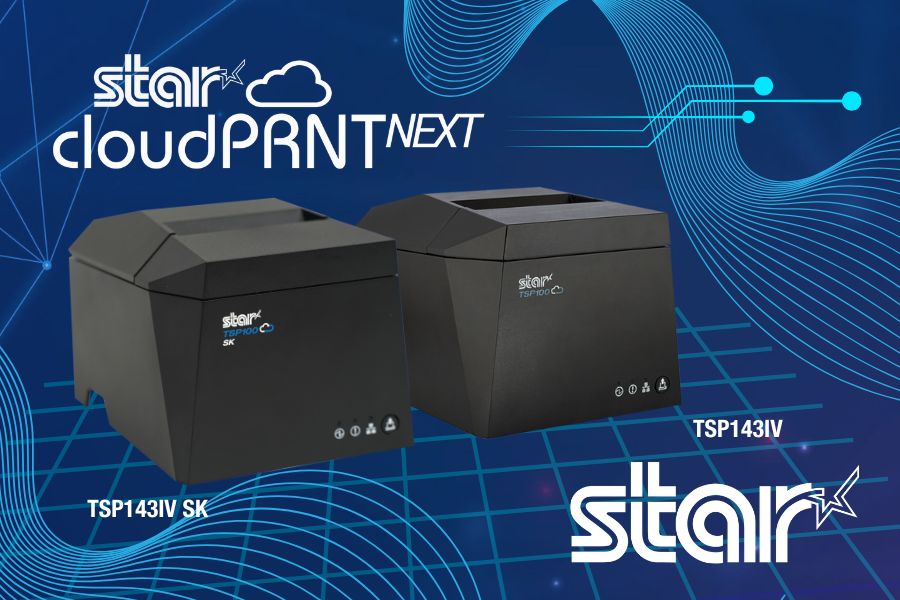
    Star Micronics’ CloudPRNT Next technology, initially introduced on the mC-Print3 models, is now also available for the latest TSP143IV thermal receipt printers, including the TSP143IV SK sticky linerless label printer models. By updating the firmware to version 2.2 or later, users of these TSP143IV models can now take advantage of CloudPRNT Next’s benefits, improving cloud printing operations in environments needing higher efficiency, dependability, and scalability.

    Read more about CloudPRNT Next technology here >

    CloudPRNT Next supports streamlined remote printing through the MQTT protocol, providing more reliable, real-time communication between cloud systems and connected devices. This results in lower latency and bandwidth consumption, particularly advantageous for businesses with high-demand or multi-location setups. Additionally, CloudPRNT Next’s scalable infrastructure accommodates an increased number of connected devices, helping businesses grow without compromising performance.

    To enable CloudPRNT Next on the TSP143IV and TSP143IV SK printers, update to firmware version 2.2 or later. This update allows businesses and developers to leverage the full capacity of CloudPRNT Next’s advanced printing capabilities, optimizing order management and workflow efficiency across the board.

    Read More About the Update

    Need more information?

    Contact Star Integrations Now

  • Intelligent Cash Drawer Detection: A New Star Feature

    Intelligent Cash Drawer Detection: A New Star Feature

    In point-of-sale (POS) technology, seamless integration and efficient troubleshooting are pivotal for operational success. Star Micronics, always at the forefront of innovation, is pleased to announce the introduction of intelligent cash drawer detection as one of its pioneering features.

    The First to Detect Cash Drawer Connectivity

    The TSP100IV thermal receipt printer series had the distinction of being the first Star Micronics product to embrace this feature. We’re excited to confirm that the momentum continues with the forthcoming mC-Label3 multifunctional label printer, making it the subsequent product to carry on with this advancement.

    Explore Star Cash Drawers

    Understanding the Functionality

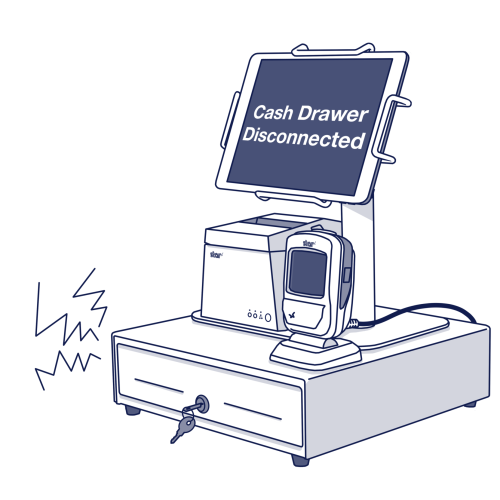
    Normally, when a cashier initiates the “accept cash” prompt, the integrated cash drawer is triggered to open. However, should there be any connectivity issues, this could result in operational hiccups.

    With the new cash drawer detection, the POS is designed to immediately flag an error if there’s any misalignment in the connection. This not only assists with instant troubleshooting but also ensures that setup errors related to cash drawer connectivity are minimized.

    For example, during the initial setup, the POS is programmed to post an error if there’s an oversight and the cash drawer isn’t correctly connected. Consequently, the user is immediately notified to examine the cash drawer’s cable connectivity.

    Star Micronics Printer Cash Drawer Connection Detector

    Supported Software Development Kits (SDKs)

    For developers and businesses keen on integrating this feature, Star Micronics is providing support through multiple SDKs, including:

    Star Technologies

    Innovating for Better Operations

    Incorporating this feature not only enhances the user experience but also solidifies the commitment of Star Micronics to provide sophisticated, user-friendly solutions to the POS industry. As always, we remain dedicated to offering cutting-edge solutions that streamline operations and support businesses in achieving their operational best.

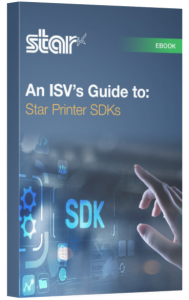
    An ISV's Guide to Star Printer SDKs ebook.

    An ISV’s Guide to Star Printer SDKs

    For ISVs navigating the complexities of printer integration, the path forward is often strewn with challenges. Get to know Star Micronics’ range of software development kits (SDKs), each uniquely crafted to address these challenges and enhance your integration prowess.

    Explore Now

    Interested in integrating with Star Micronics?

    Contact Integrations Now

  • Star Software Update: React Native StarXpand™ SDK and mC-Print Firmware

    Star Software Update: React Native StarXpand™ SDK and mC-Print Firmware

    Welcome to the Star Software Update, the regular series of blog updates where Star’s Integration Team informs you about the latest important Star Micronics software updates.

    What’s New:

    Star has released V1.1.0 of React Native StarXpand™ SDK for iOS and Android, available on Github. Updates to the firmware for Star’s mC-Print2 and mC-Print3 thermal printers were also made.

    For the full repository, click here >

    What is Included in the Software Update?

    Updates to StarXpand™ SDK

    • Updated React Native version to 0.66
    • Improved graphics printing speed
    • iOS: Supported for Xcode 13
    • iOS: Added support for the iOS simulator on Apple Silicon Mac
    • Bug fixes for both iOS and Android

    Click here for the list of our latest updates >

    Updates to mC-Print2/3 Firmware

    • Support for TLS 1.3
    • Update CloudPRNT protocol to the same level as HIX
    • Web configuration – multiple CA certification support when uploading on the same level as HIX
    • Updated pre-installed CA certification from V1.0 to V1.1

    About StarXpand™ SDK

    The StarXpand SDK for React Native helps streamline software development.

    StarXpand™ is an industry-first software development kit (SDK) for Star printer control for the popular cross-platform framework, React Native. The SDK supports the development of connecting to and controlling Star printers in applications that utilize React Native. 

    The StarXpand™ SDK will help shorten the development time and maintenance costs associated with printer connection and will be published on GitHub, a website where developers around the world publish and share program codes.

    Read more about this leading technology here >

    About Our mC-Print Thermal Printers

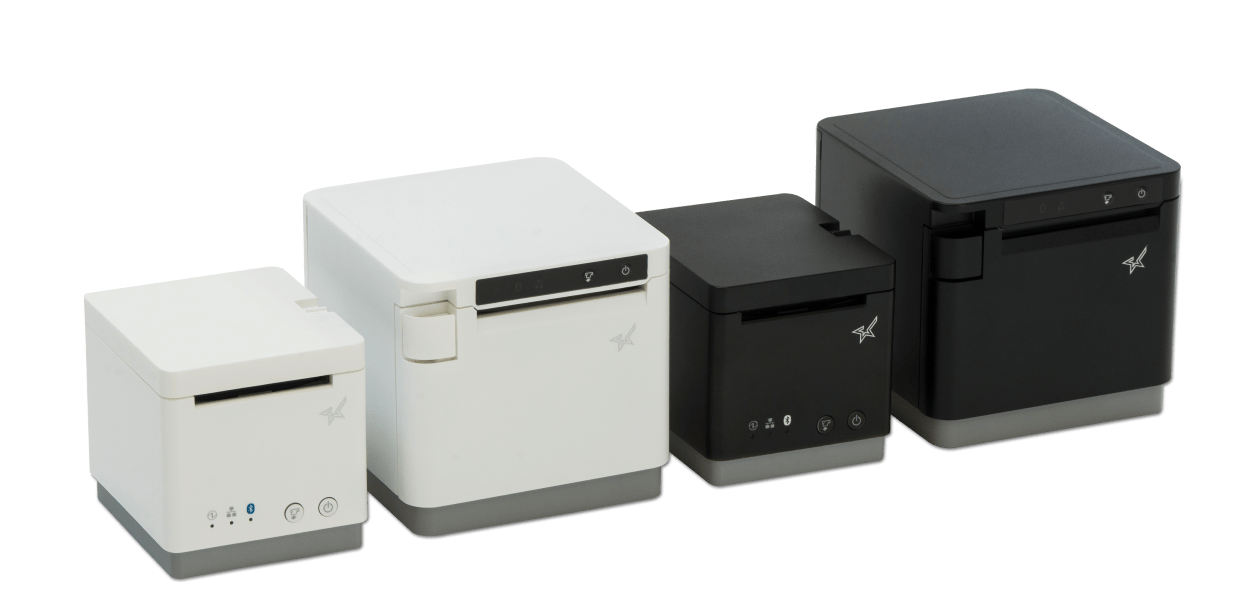
    mC-Print2-and-mC-Print3
    POS Printing in Style: mC-Print2 and mC-Print3

    Sleek and space-saving, our line of POS printers includes the sophisticated and compact mC-Print2 and mC-Print3, which use the latest in SDK technology for easy integration with any iOS or Android. These resilient thermal receipt printers boast multiple connectivity options, including USB, Lightning, Bluetooth, CloudPRNT, and LAN, which means you can change your POS software without changing your printer.

    Take a look at our extensive line of thermal printers >

    Next Steps

    Visit GitHub to access and learn more about the React Native StarXpand SDK updates here.

    Questions or comments?

    Contact Star’s Integration Team

  • Star Software Update: Beta Windows USB Cash Drawer SDK Released

    Star Software Update: Beta Windows USB Cash Drawer SDK Released

    Welcome to the Star Software Update, the regular series of blog updates where Star’s Integration Team informs you about the latest important Star Micronics software updates.

    What’s New:

    Star Micronics has released the Beta Windows USB Cash Drawer SDK. This SDK is distributed as a DLL and a sample app is provided to demonstrate usage. This SDK is ideal for any industry that uses a cash drawer (retail, hospitality, etc.)

    What is Included in the SDK?

    The SDK for Star Micronics USB cash drawers (currently the SMD2 Max Series and CD3 Value Series) includes three functions:

    • Discovering connected cash drawers (up to 8 can be connected at once)
    • Checking open/closed state of the cash drawer(s)
    • Opening the cash drawer(s)

    About Star’s USB Cash Drawers

    Star Micronics has two series of cash drawers that feature USB connectivity. Learn more about them below:

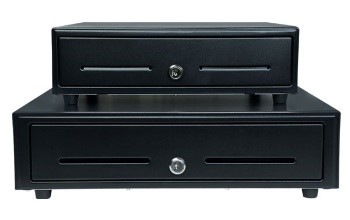
    cd3-stacked

    Value Series Cash Drawers (CD3)

    Durable steel construction
    Black or white coated finish
    Cash till options for US and Canada
    13”x13” and 16”x16” models available

    Learn more >

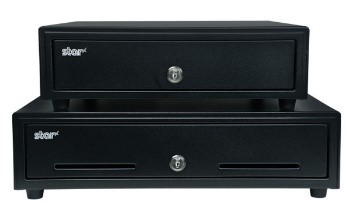
    smd2-stacked

    Max Series Cash Drawers (SMD2)

    High quality steel construction
    Black or white coated finish
    Kensington lock capable for added security
    13”x17” and 16”x17” models available

    Learn more >

    Next Steps

    Visit GitHub to access and learn more about the SDK: https://github.com/star-micronics/starlabs-cashdrawer-sdk-windows

    Questions or Comments?

    Contact Star Integration Now

  • Star Software Update: IFBD-HI01X/HI02X Firmware Update

    Star Software Update: IFBD-HI01X/HI02X Firmware Update

    Welcome to the Star Software Update, the regular series of blog updates where Star’s Integration Team informs you about the latest important Star Micronics software updates.

    What’s New:

    Star Micronics has released the firmware update (version 1.9.2) for the CloudPRNT interface (IFBD-HI01X/HI02X).

    What is the CloudPRNT Interface?

    The CloudPRNT interface (IFBD-HI01X/HI02X) is available on Star Micronics mC-Print2, mC-Print3, TSP650II, TSP700II, and TSP800II thermal POS printers, as well as the SP700 impact kitchen printer.

    This versatile interface provides intelligent printing for cloud-based retail, logistics and hospitality applications, enabling unmatched flexibility for remote receipt and remote order printing using a standard receipt printer.

    What is Included in the Update?

    New Wi-Fi adapter support has been added to the interface during this update. Supported Wi-Fi dongle models include:

    • EDIMAX EW-7811UN V2
    • TRENDnet TEW-648UBM V2.0R
    • ASUS USB-AC53 Nano
    • D-Link DWA-182 HW Ver:D1

    Learn more about CloudPRNT in the below video:

    Next Steps

    This firmware can be updated in the web settings interface for the IFBD-HI01X/HI02X.

    Questions or Comments?

    Contact Star Integration Now

  • Star Software Update: How To Install futurePRNT Driver Update (Ver 7.5.1)

    Star Software Update: How To Install futurePRNT Driver Update (Ver 7.5.1)

    Welcome to the Star Software Update, the regular series of blog updates where Star’s Integration Team informs you about the latest important Star Micronics software updates.

    What’s New:

    Star Micronics has released the futurePRNT v7.5.1 to address issues related to a Windows 10 update issue.

    About the Issue

    Windows 10 updates released on June 8, 2021 have been reported to cause printing problems with USB printers, and may also cause some cash drawers to not close properly.

    More information on the issue can be found here: https://starmicronics.com/help-center/knowledge-base/resolving-usb-printer-queue-issues-related-to-june-2021-windows-update/

    The Solution

    In addressing the printer/cash drawer malfunctions related to recent Windows 10 Updates, Star Micronics developed a driver update to resolve this matter. Please use the following links to download the driver and access the installation guide.

    Questions or Comments?

    Contact Star Integration Now

  • Star Software Update: CloudPRNT for WooCommerce on GitHub

    Star Software Update: CloudPRNT for WooCommerce on GitHub

    Welcome to the Star Software Update, the regular series of blog updates where Star’s Integration Team informs you about the latest important Star Micronics software updates.

    What’s New:

    Star Micronics has added its CloudPRNT for WooCommerce WordPress plugin to GitHub.

    What is CloudPRNT for WooCommerce?

    WooCommerce-LogoStar’s free CloudPRNT for WooCommerce plugin for Star receipt printers can be used to quickly create a remote order or receipt printing solution for restaurants, bakeries, boutique retailers, and more – with minimal cost and setup time.

    Star-CloudPRNT-Logo-FINAL-May2019-e1574805077699

    By offering online purchasing options, retail stores and restaurants are able to grow their business and expand to a larger market. Star CloudPRNT allows businesses to seamlessly integrate online purchasing into their stores and enables the automatic printing of receipts on Star’s CloudPRNT thermal receipt printers including Star mC-Print2 and mC-Print3, and TSP600II, TSP654IISK, TSP700II, and TSP800II.

    CloudPRNT provides intelligent printing from a web server from any network to connected Star printers anywhere in the world, without the need for a local POS terminal. This enables unparalleled flexibility for remote receipt and remote order printing using a standard receipt printer.

    Additionally, CloudPRNT technology provides benefits to both restaurant and retail stores alike by eliminating the need for an extra tablet to send an online order to the printer. Instead, the ordering service communicates directly with the printer. The store owner or service provider does not need to maintain an SSL certificate for CloudPRNT printers since they communicate with the server as a client.

    Learn More about CloudPRNT

    Next Steps

    Click here to access CloudPRNT for WooCommerce on GitHub.

    CloudPRNT for WooCommerce installation instructions are available here: https://wordpress.org/plugins/star-cloudprnt-for-woocommerce/#installation

    You may also learn more about the installation in the below video:

    Questions or Comments?

    Contact Star Integration Now